
Port forwarding on a router
Router Configuration
Section titled “Router Configuration”- Open your router’s web interface.
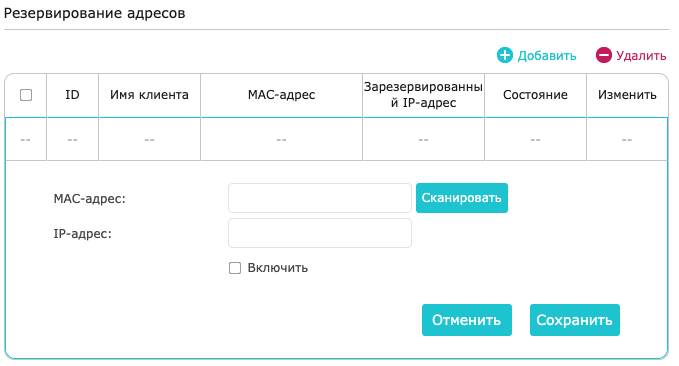
- Assign a static IP address to the camera so it doesn’t receive a different IP after the router restarts. These settings are usually found under the LAN or DHCP Server tab.
- Find the tab responsible for port forwarding.
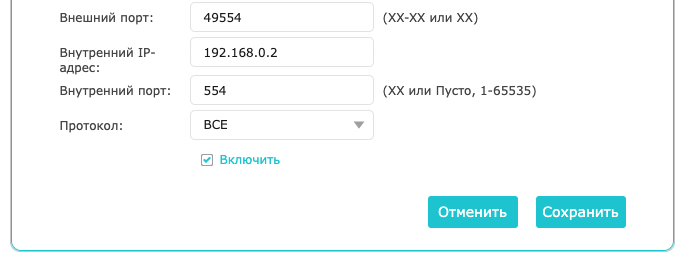
- Create a new entry. Enter the camera’s IP address, select TCP protocol, set the internal port to the camera’s RTSP port (default value 554), and choose an external port from the range 49152–65535 (must be unique).
- If you plan to connect the camera via ONVIF, similarly forward the camera’s ONVIF port (default value 80) to a unique external port from the range 49152–65535.
If you have multiple cameras, repeat the setup for each one.