
Line Crossing: how to enable and configure the event?
Crossing forbidden lines can pose a real threat — that is why our cameras include a function for recording these violations. The system detects the event and immediately notifies the user, enabling a wide variety of scenarios for protecting people and property.
How It Works
Section titled “How It Works”The camera detects when a person, group of people, vehicle, or any other object crosses a defined line, and the system then notifies you via the chosen notification type.
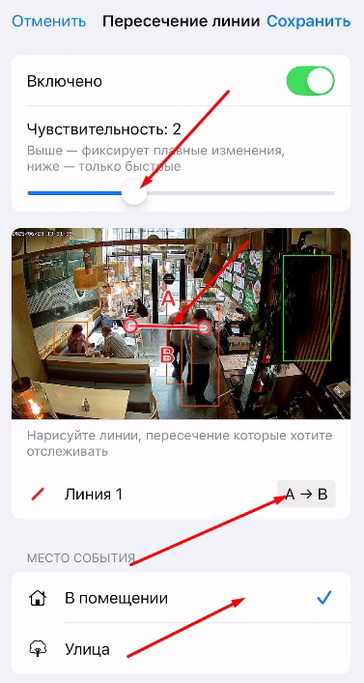
The user can specify the direction of the line crossing, sensor sensitivity, and event location for fine-tuned configuration of the video surveillance system. For example, the higher the sensitivity, the more accurate the detection, and specifying the crossing direction opens up additional possibilities.
Use Cases
Section titled “Use Cases”For any task involving line monitoring: crossing the boundary of a protected territory, monitoring vehicle entry to a parking lot, detecting violations of traffic flow direction, and even detecting a neighbor appearing near your vehicle.
How to Configure
Section titled “How to Configure”- Select the required camera from the location list or find it using the text search;
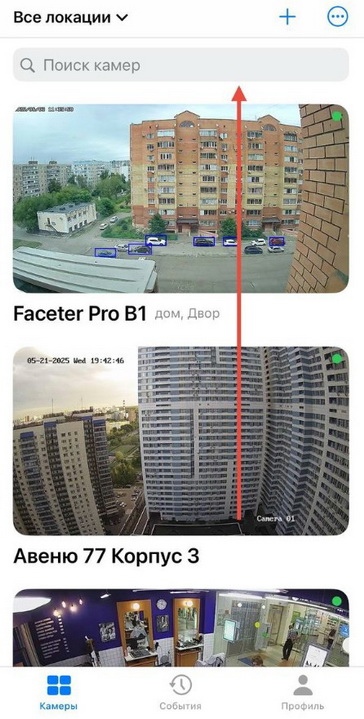
- Open the settings menu (three dots), tap “Settings”;
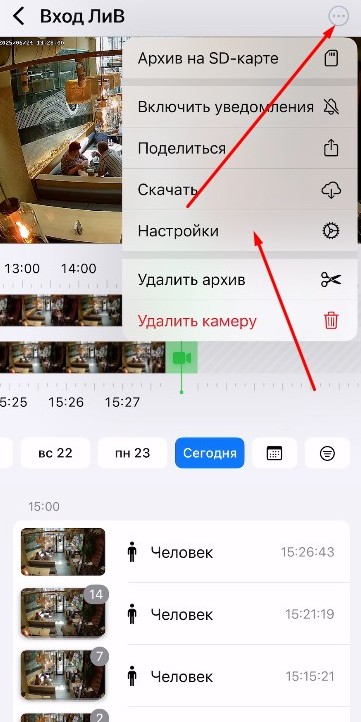
- Select “Camera Settings”;
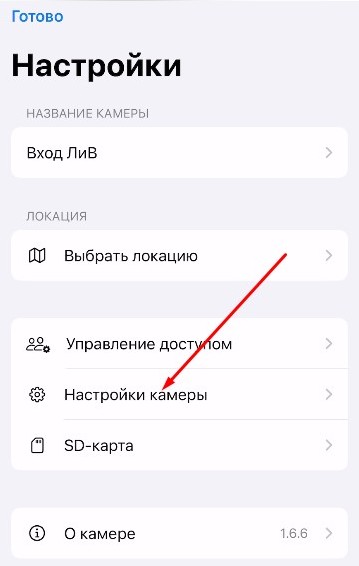
- Tap “Smart Events”;
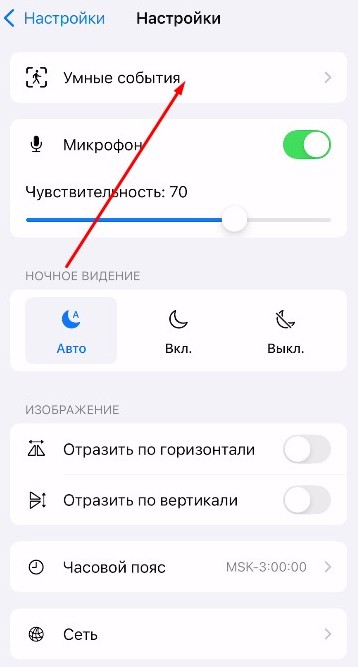
- Select “Line Crossing”;
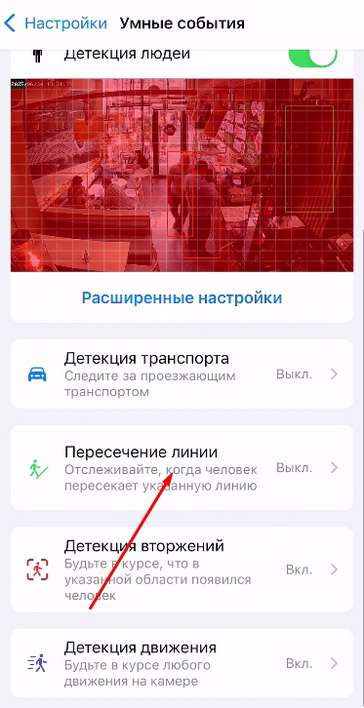
- Draw the line on the camera view, choose the direction, and set the “Sensitivity” and “Event Location” values;
- Configure Push notifications and/or Telegram notifications.
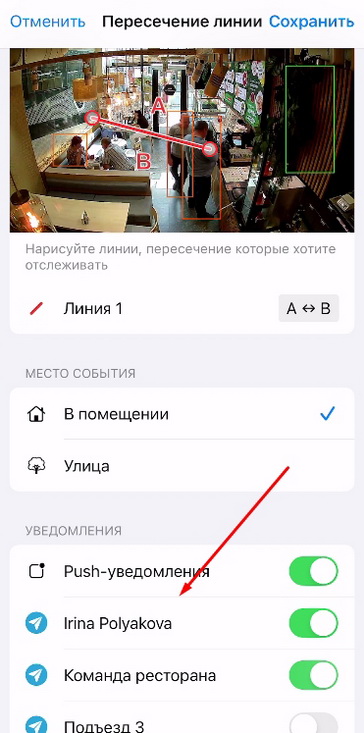
Detect line-crossing events and receive timely notifications to make informed decisions in the area of monitoring and security.