
Connecting a Phonecam
Faceter turns any smartphone into a ready-to-use security camera for home or office. The result is a full-featured system with motion detection, Telegram notifications, timelapse, and a 24-hour archive.
Any phone or tablet can be used as the camera. A computer (laptop) or a second smartphone is used to manage the system, watch the live feed, archive, and events.
How to connect a smartphone as a camera with a computer (laptop) as the monitor:
- Sign in to your Faceter account from a computer or laptop.

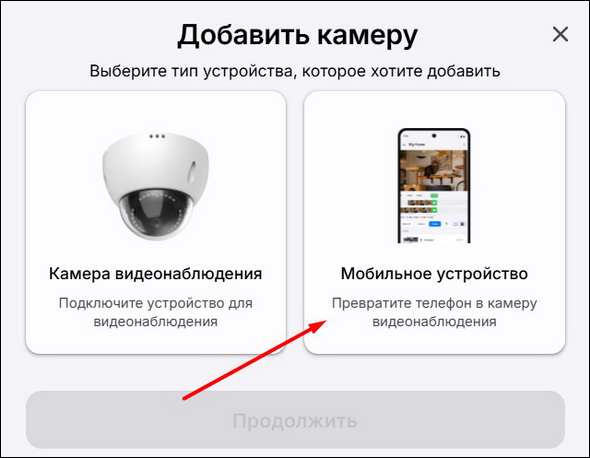
- Click “Add camera”.

- Select “Mobile device”.
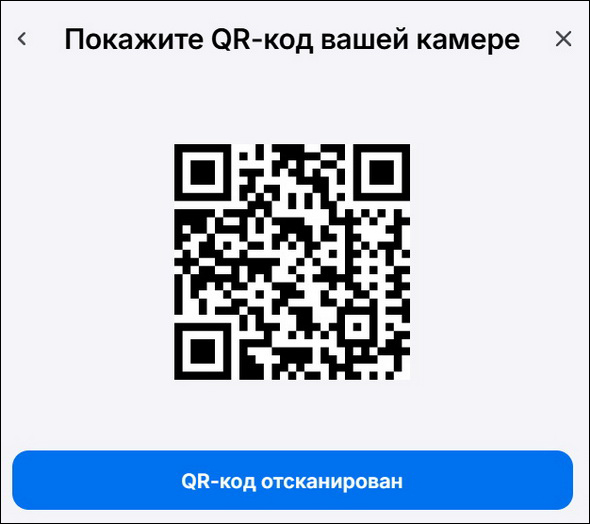
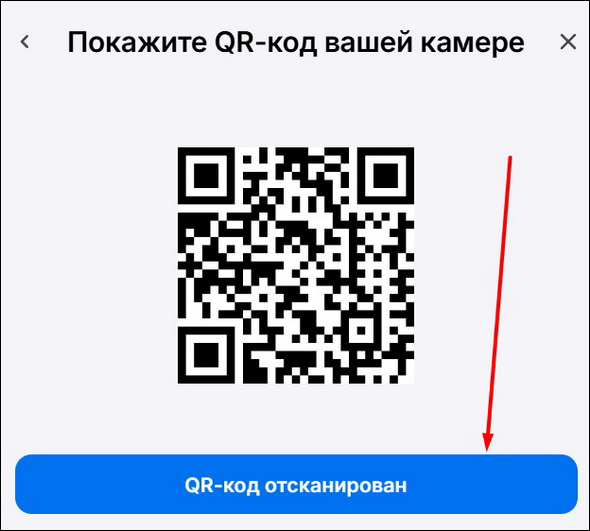
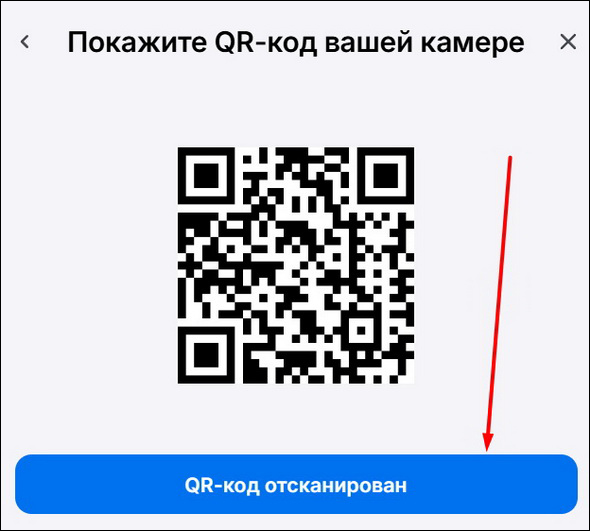
A QR code will appear on the screen for scanning.
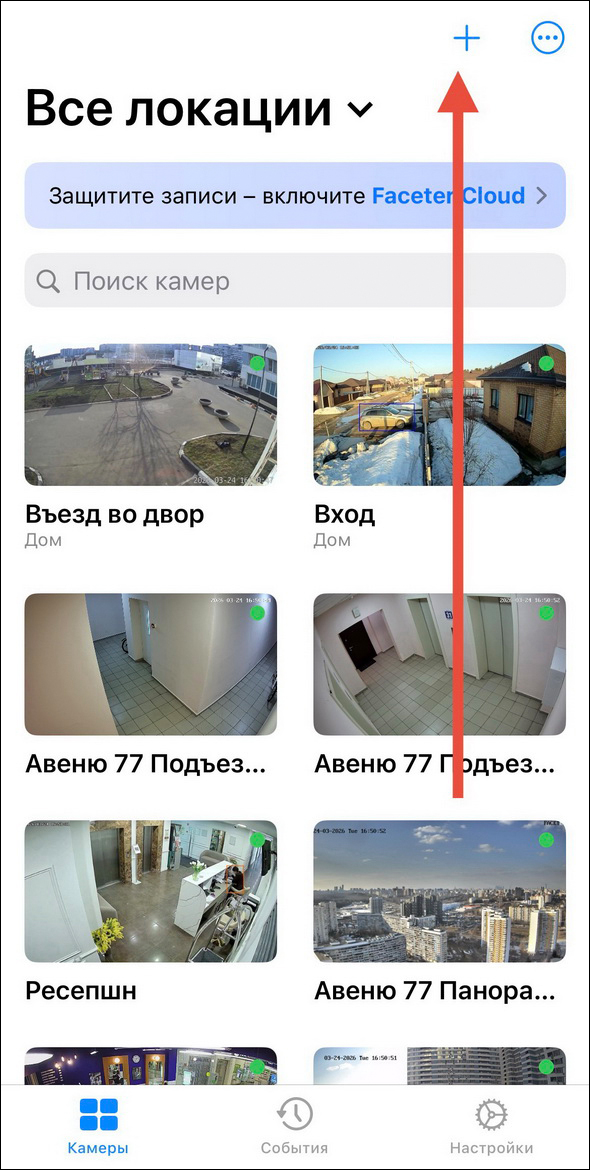
- Open the Faceter app on the smartphone or tablet you want to use as the camera. Tap the button to add a new camera.
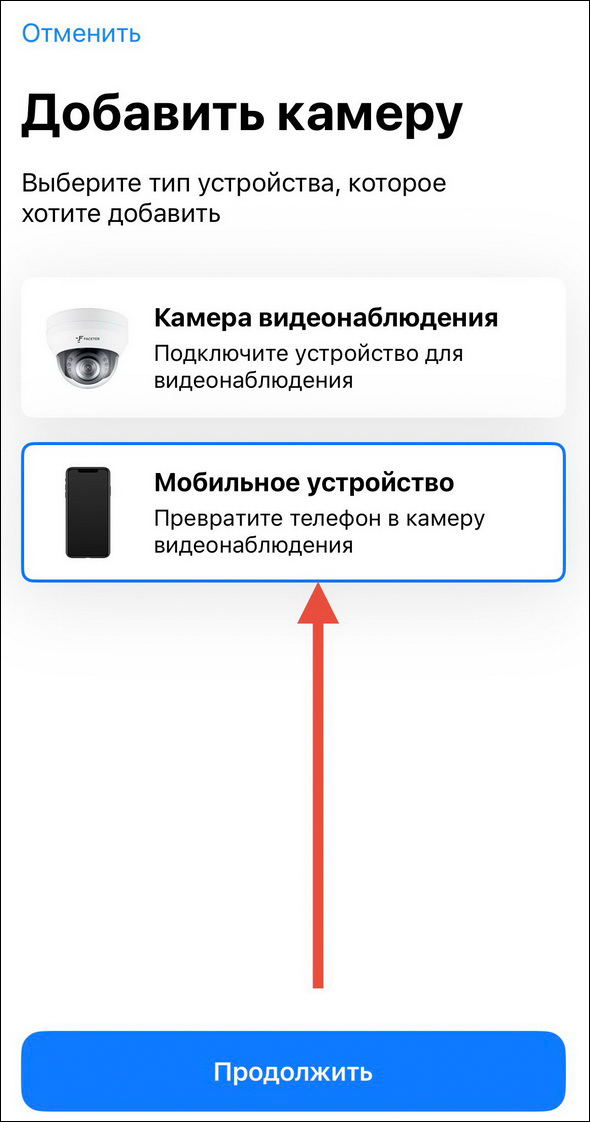
- Select “Mobile device”.
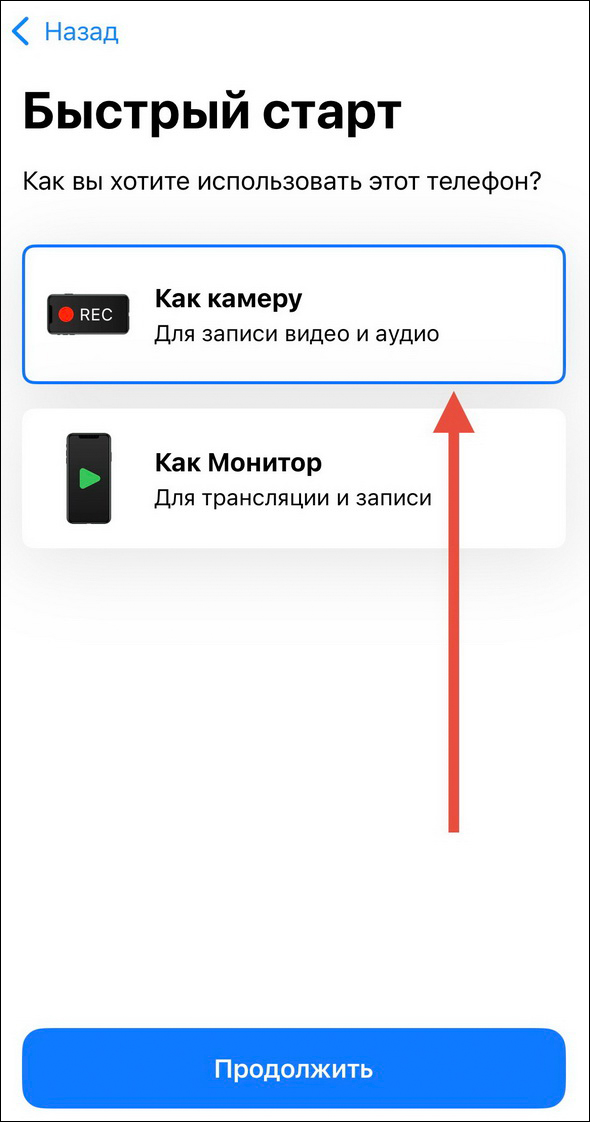
- Choose “As a camera” and scan the QR code from step 3.
- After a successful scan, tap “QR code scanned”.
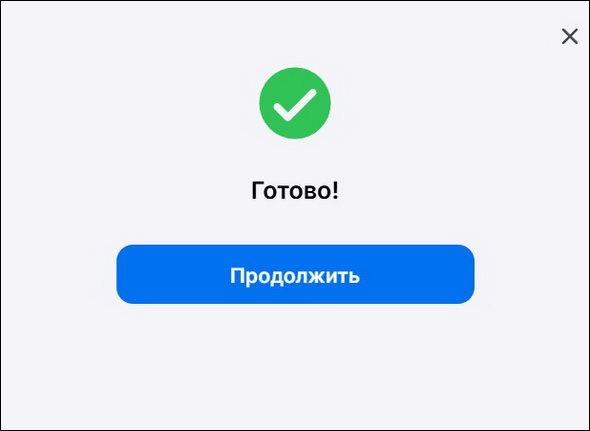
- Tap “Continue”.
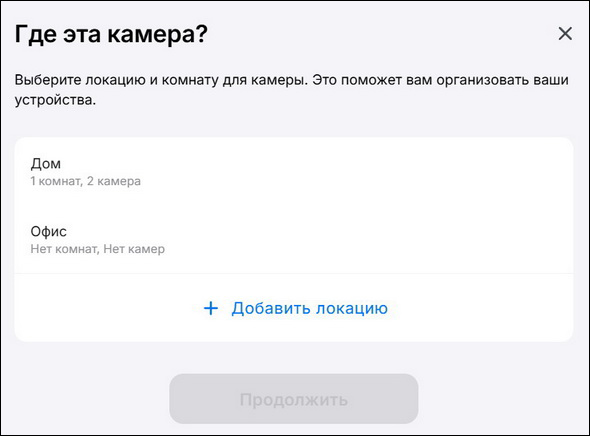
- Set the location and room for the added camera.
Done: the smartphone (or tablet) is now being used as a camera, and the system is managed from the computer (laptop).
How to connect a smartphone as a camera with a second phone as the monitor:
- On the smartphone you want to use as the monitor, tap the button to add a new camera.
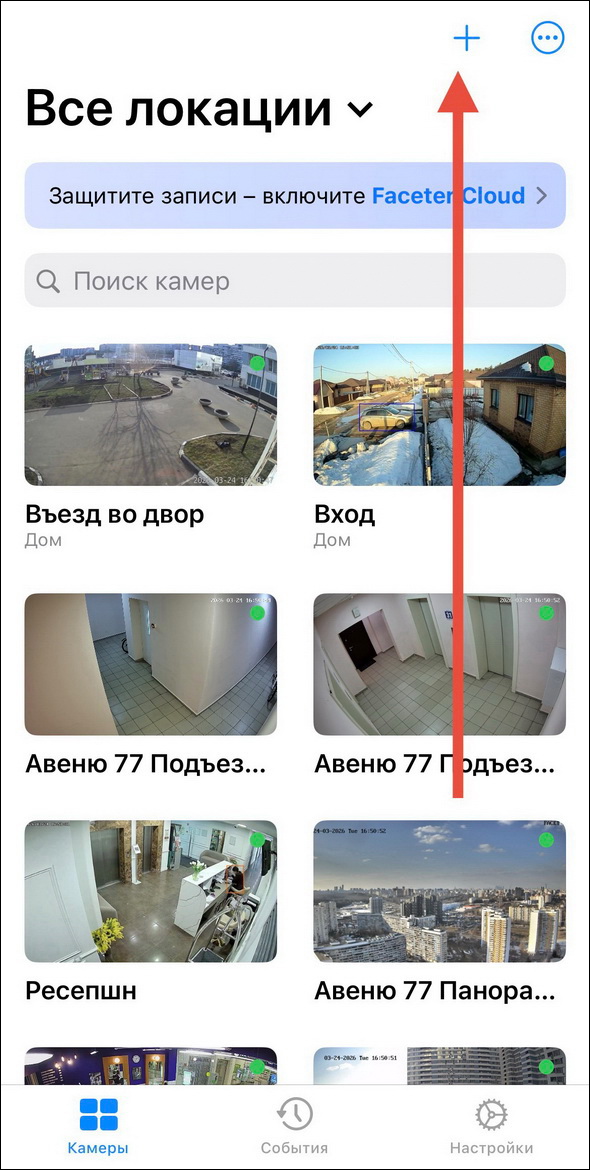
- Select “Mobile device”.
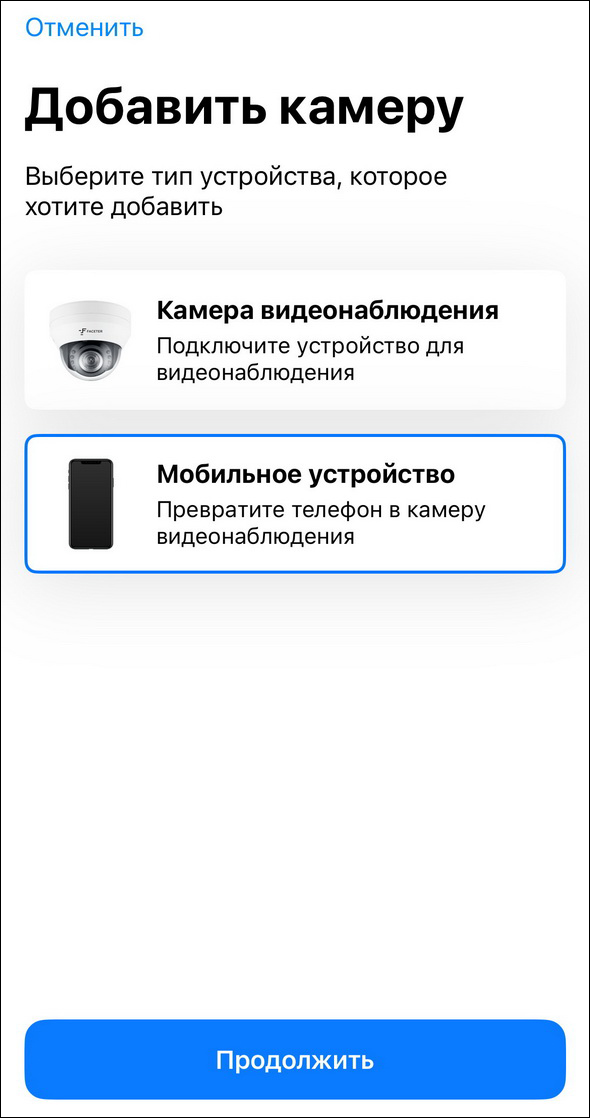
- Choose “As a monitor”.
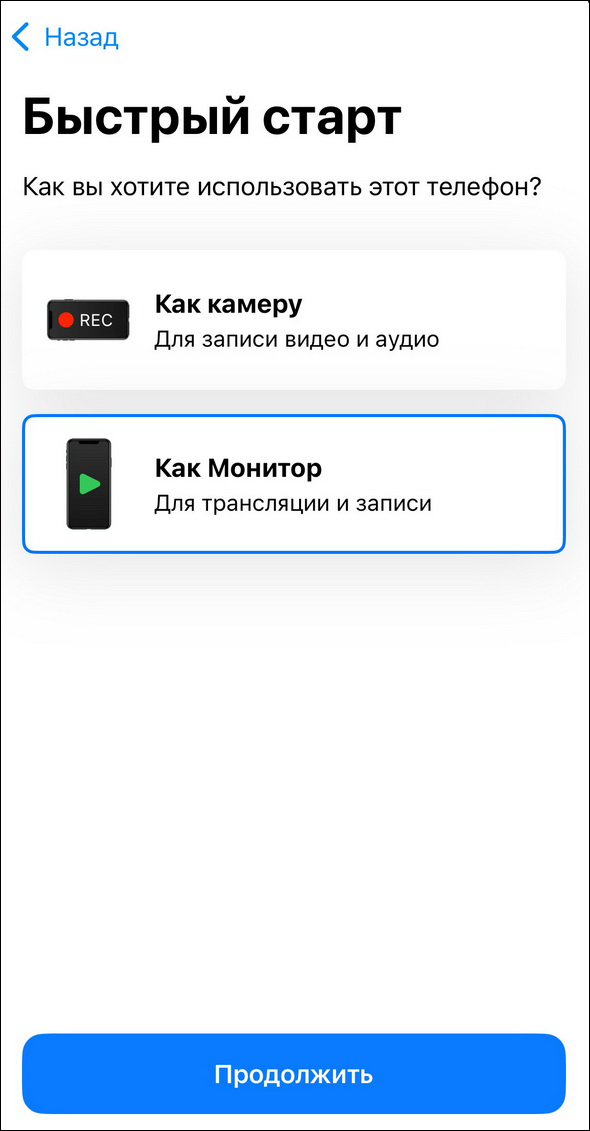
The app will prompt you to complete the setup on the camera phone.
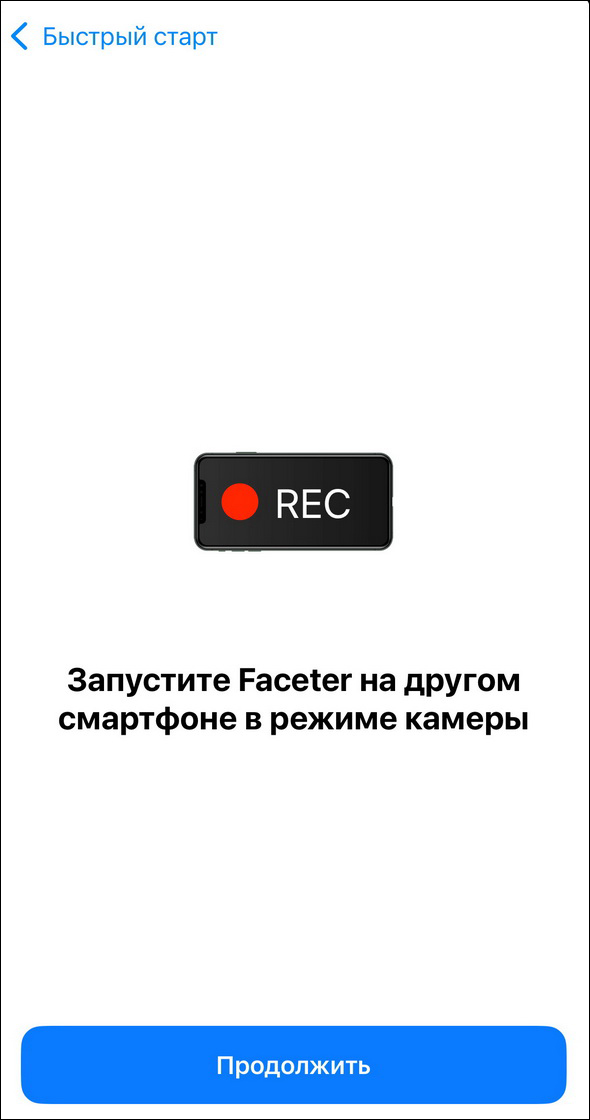
- On the smartphone you want to use as the camera, tap the button to add a new camera (same as step 1).
- Select “Mobile device”.
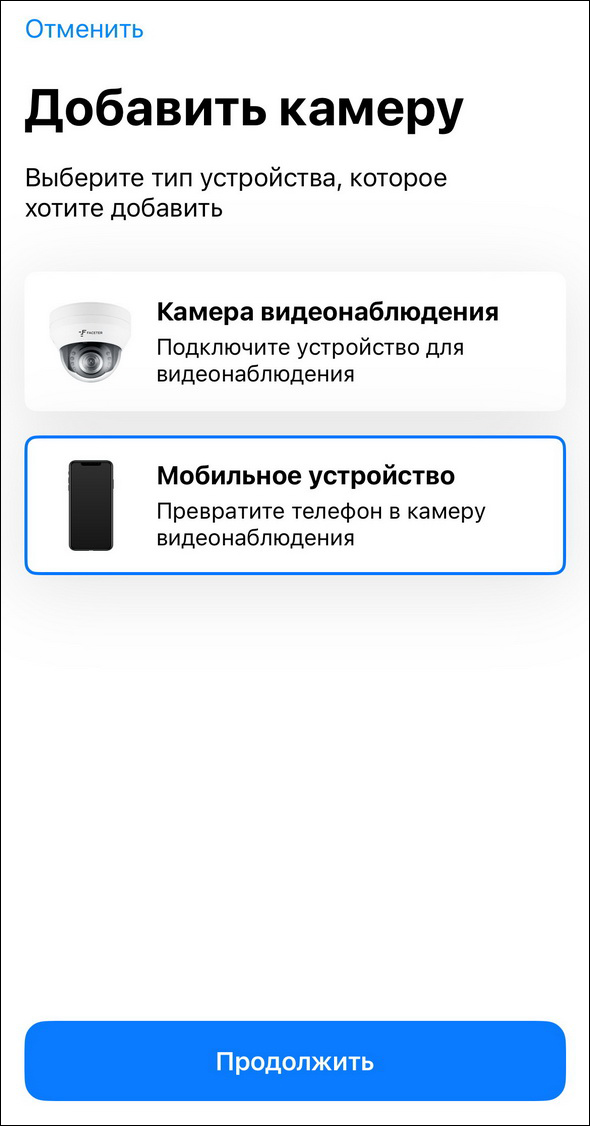
- Choose “As a camera”.
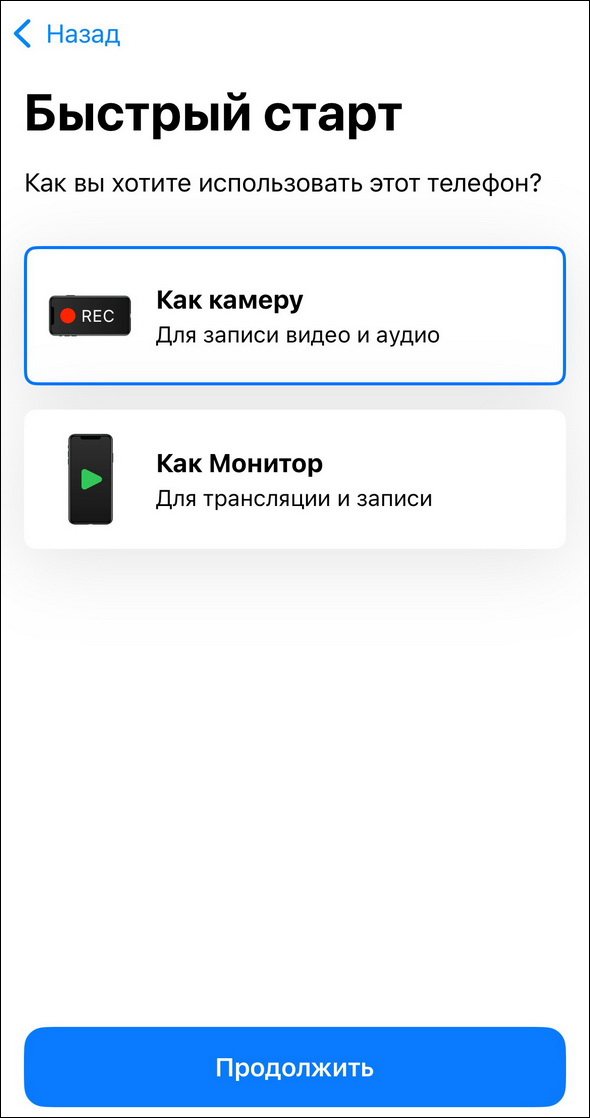
The app will prompt you to scan a QR code.
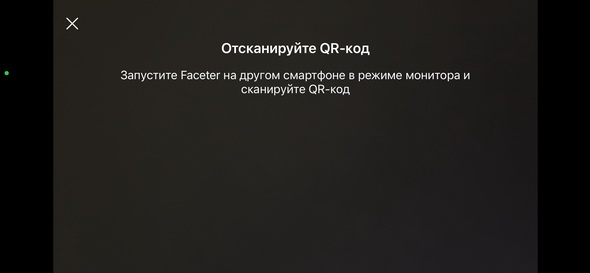
- Use the camera phone to scan the QR code shown on the monitor phone.
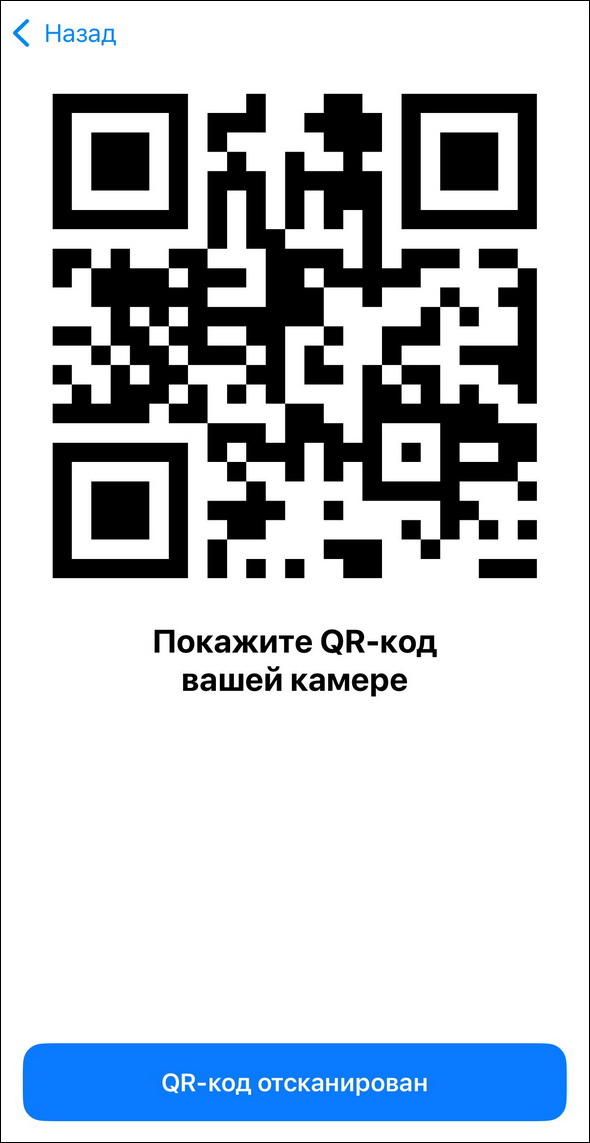
- After a successful scan, tap “QR code scanned”.
- Enter a name for the camera.

- Set the location and room for the added camera.

Done: the smartphone (or tablet) is now being used as a camera, and the system is managed from the second smartphone.
Learn how to improve Faceter app stability on phonecams in a dedicated guide.