
How to set up Telegram notifications?
You can receive event notifications in Telegram: a person appearing in the monitored area, vehicle detection, line crossing, intrusion, motion detection.
Each of these events is configured individually in “Settings” - “Camera Settings” - “Smart Events”.
Important: you can only configure notifications for cameras where you are the owner or have been granted full access.
Activating the Bot
Section titled “Activating the Bot”-
Go to “Settings”.
-
Select “Telegram Notifications”.
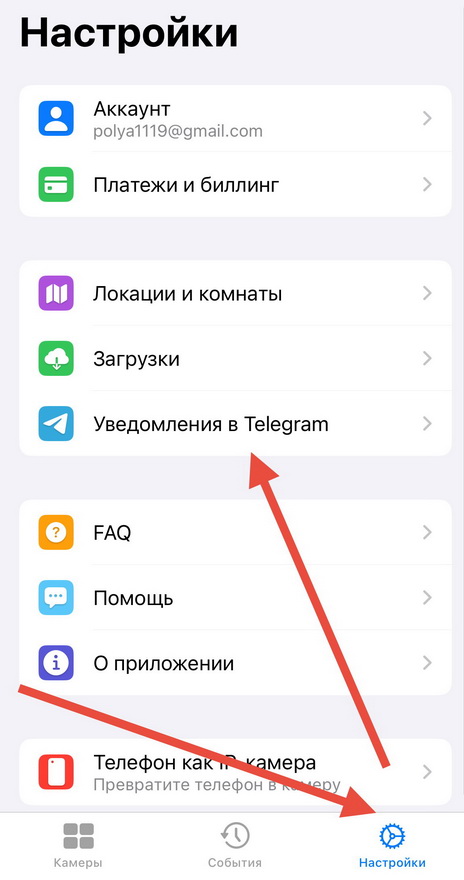
- You can receive notifications in direct messages or add the bot to a group chat and receive notifications there.
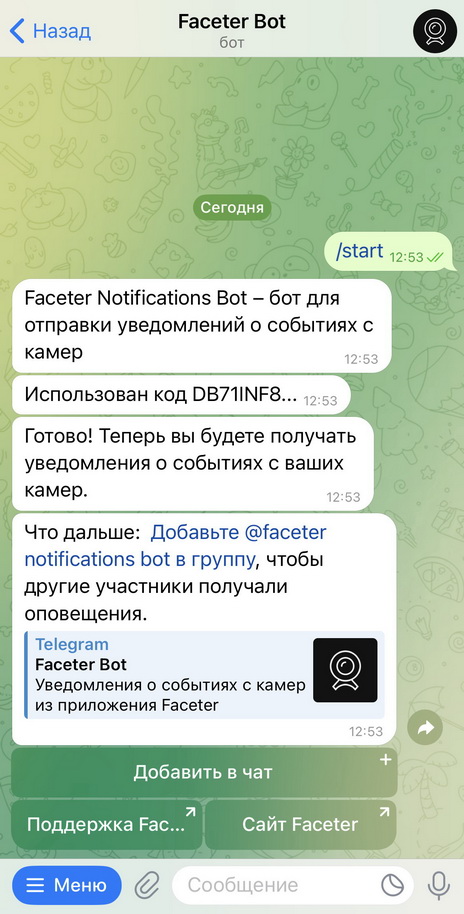
If you want to receive notifications in direct messages, tap “Open chat with bot in Telegram” and follow the on-screen instructions.
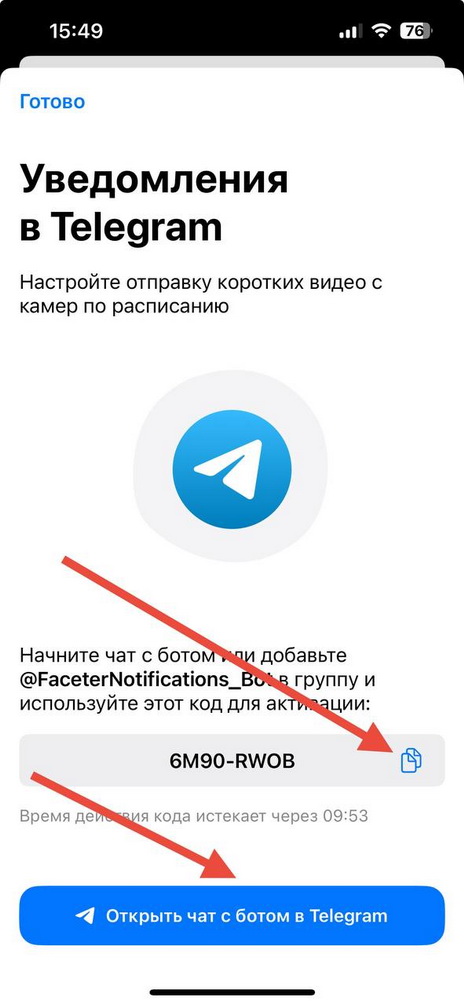
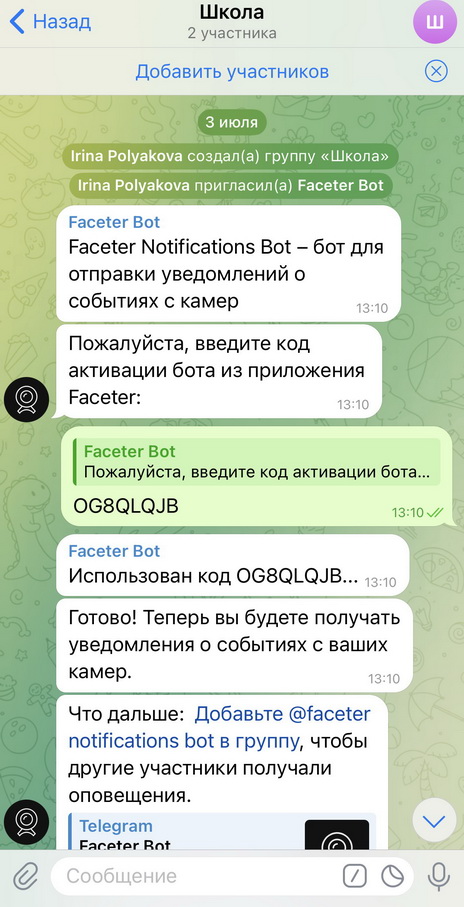
If you want to receive notifications in a group chat, add the bot @FaceterNotifications_bot to the group, copy the activation code from the app, and send it as a reply to the bot in the group. A separate code is required for each chat.
Configuring Event Notifications
Section titled “Configuring Event Notifications”- Select the required camera.
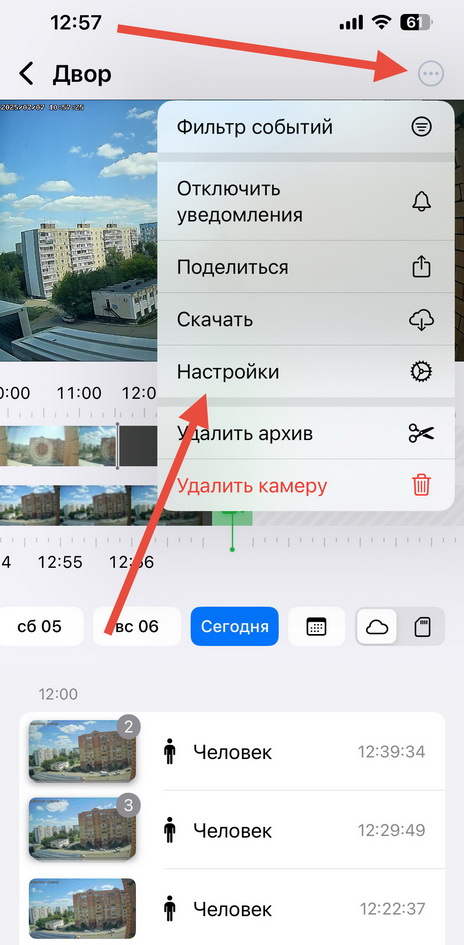
- In the upper right corner, tap the three dots and select “Settings”.
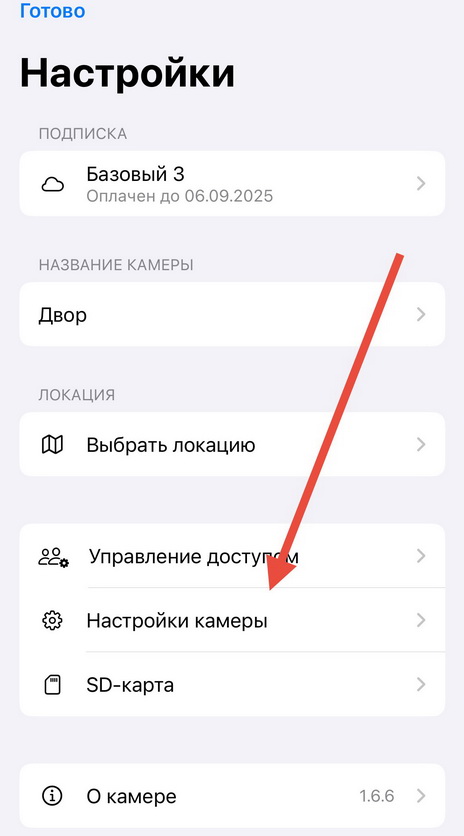
- Then “Camera Settings”.
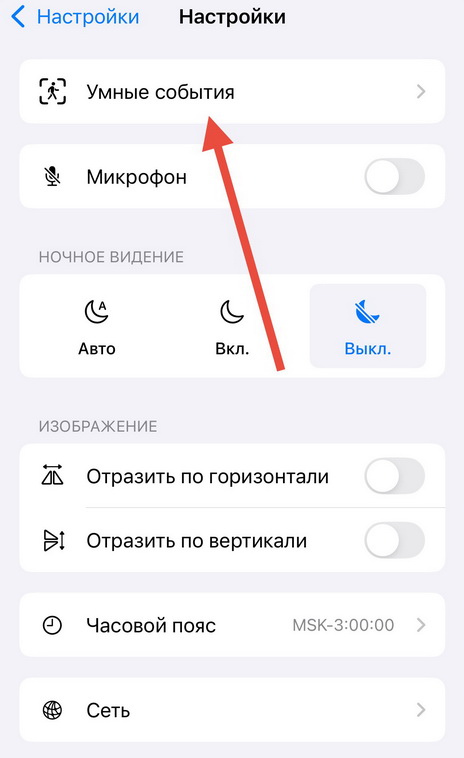
- In the settings, select “Smart Events”.
- Select the event you are interested in, for example, “Motion Detection”.
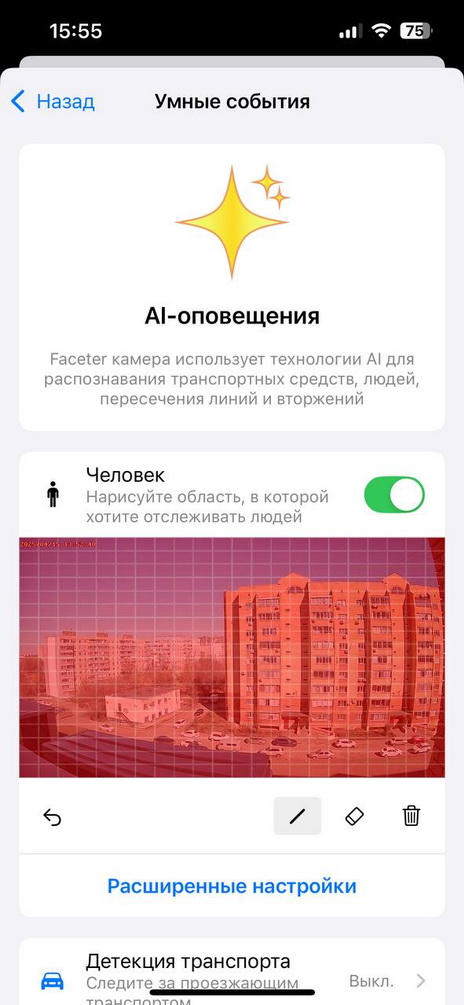
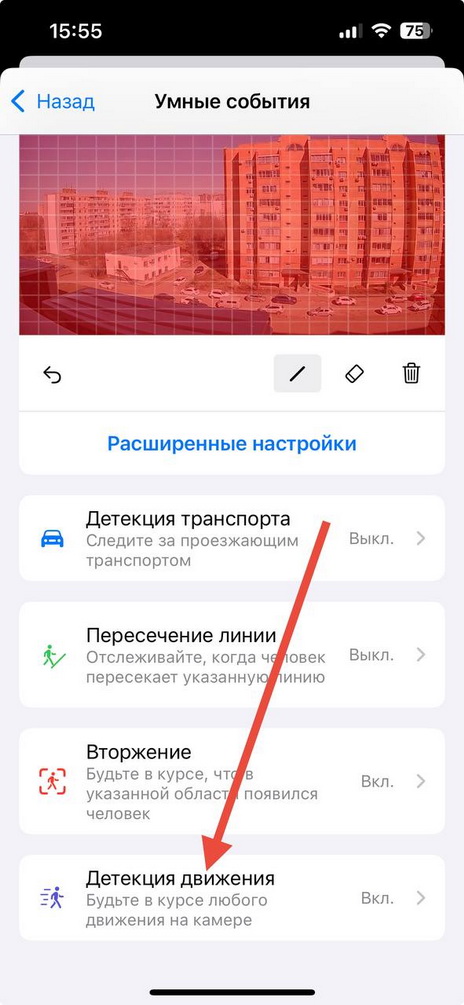
After navigating to the selected event, you will find the full list of groups (to which you previously added the bot) and your personal chat with the bot. Enable notification delivery for the event to a group or direct messages.
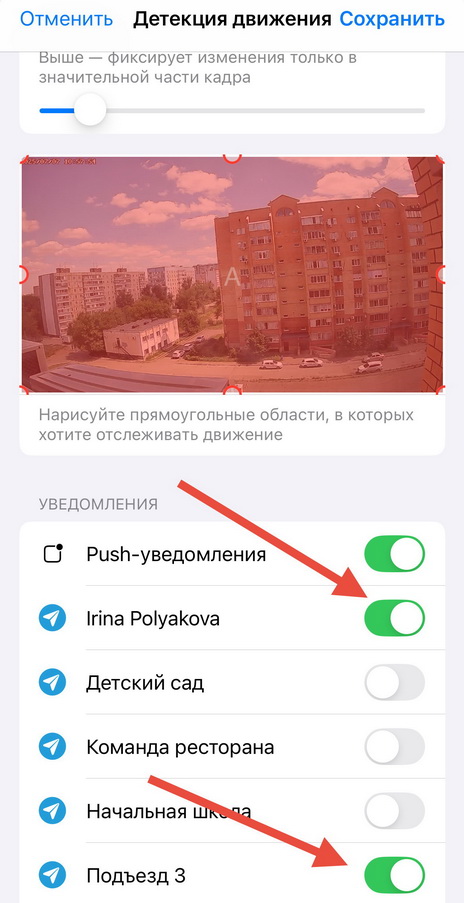
Congratulations! You have successfully configured event notifications from cameras in Telegram.
Third-party cameras connected via ONVIF can also send motion detections to Telegram, but you need to enable detection in the camera’s own settings and configure notifications in the same way as for Faceter cameras in the app.