
Connecting a camera in the 101 app
 Construction and renovation project monitoring
Camera connection options
Section titled “Camera connection options”Choose the appropriate connection setup.
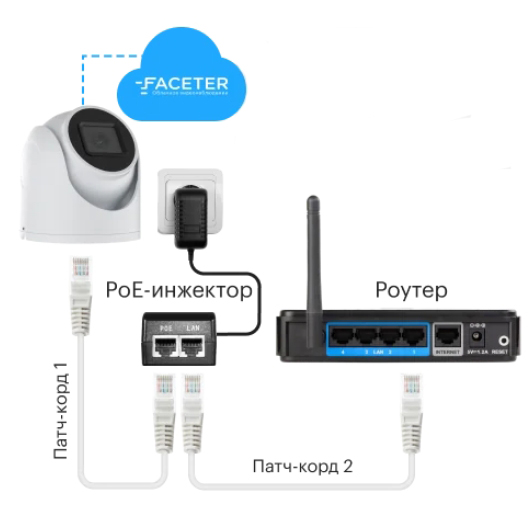
- Setup #1: Connecting a single camera via a PoE injector:
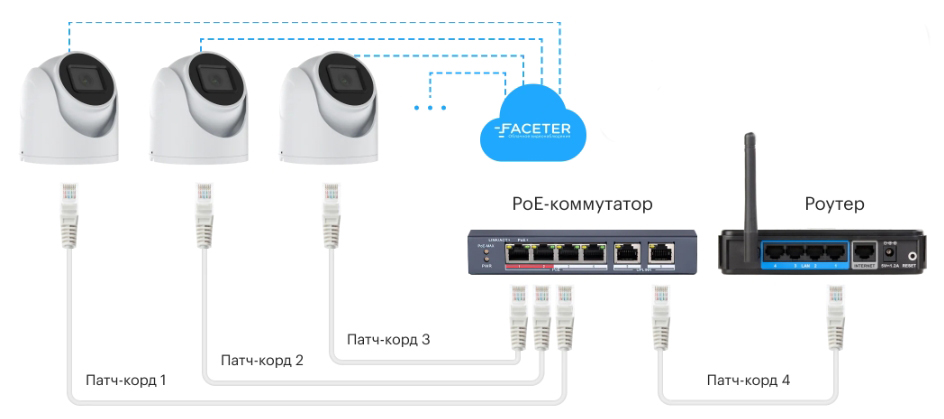
- Setup #2: Connecting multiple cameras via a PoE switch:
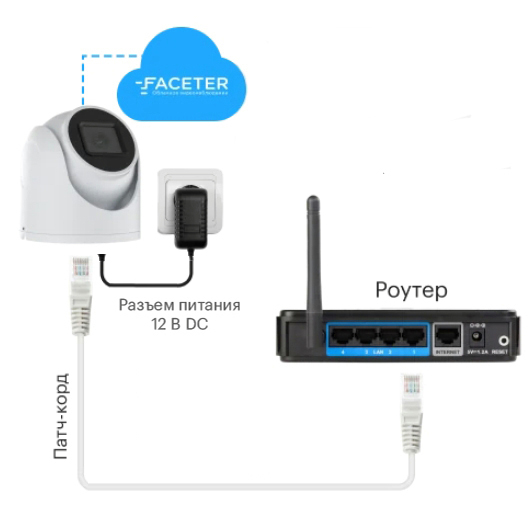
- Setup #3: Connecting a camera using a power adapter:
Important: For a successful camera addition to the 101 Vision app, make sure your phone and camera are connected to the same local network (the same router).
Additional equipment
Section titled “Additional equipment”After choosing a connection setup, prepare the required equipment.
- Power adapter (for setup #3). Recommended output power: 12V-2A.
- If you need to install 1 camera and there is no access to a power outlet, you can use a passive PoE injector (suitable for setup #1). Minimum device requirements: 48V—350mA.
- If you need to install more than one camera, it makes sense to use a PoE switch. Suitable for setup #2.
- Patch cable. You can purchase a ready-made set or make your own (you will need RJ45 connectors and the appropriate length of twisted pair cable). Recommended cable category: copper, 4P-Cat.5e (for indoor installation or outdoor, unshielded or shielded — chosen based on installation conditions).
A complete set of the required equipment can be purchased together with the camera in our store.
Connecting the camera
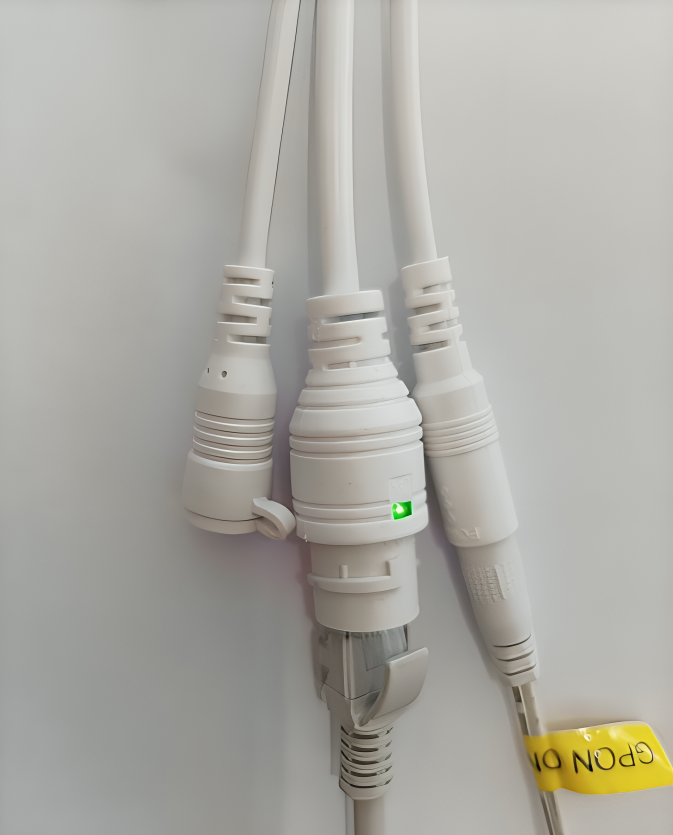
Section titled “Connecting the camera”- Connect the camera to the router and power adapter. When using a PoE switch or PoE injector, a power adapter is not required — power is supplied through the Ethernet cable.
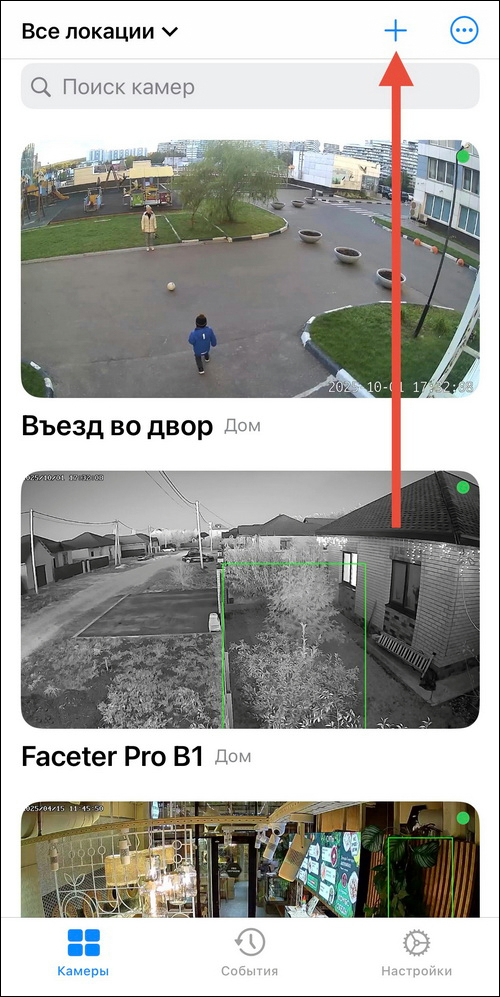
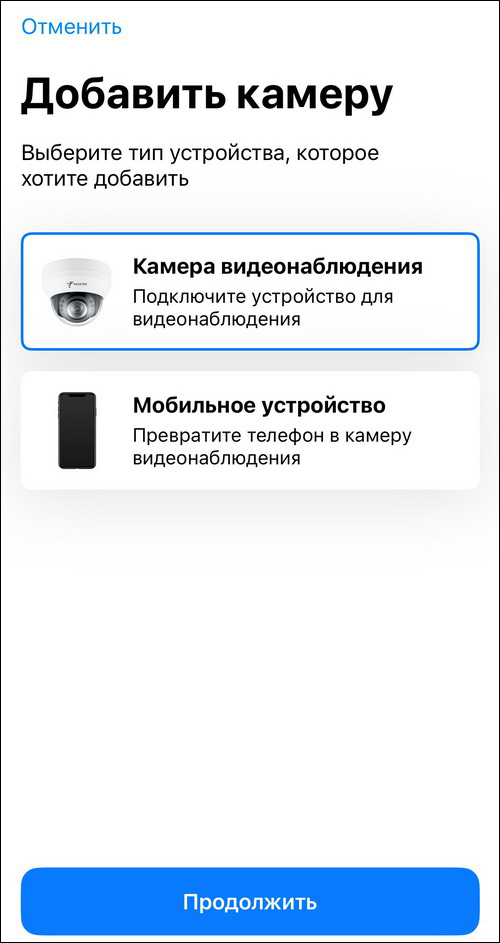
- Install and open the 101 Vision app and in the camera addition section select the device type “Security Camera”.
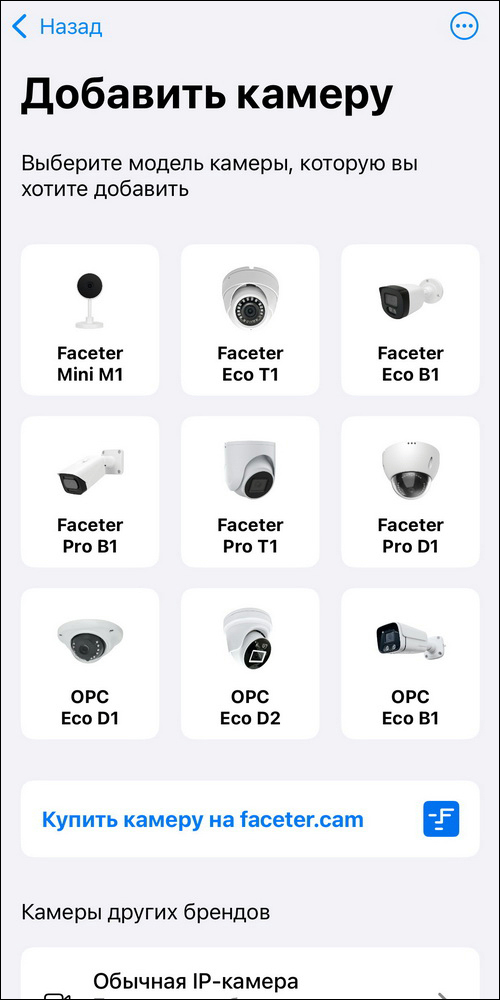
- Select the camera model from the suggested list.
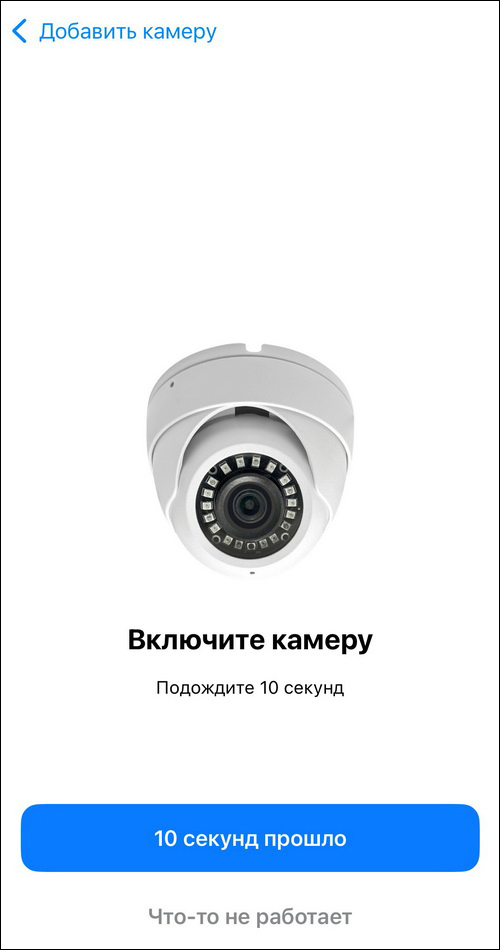
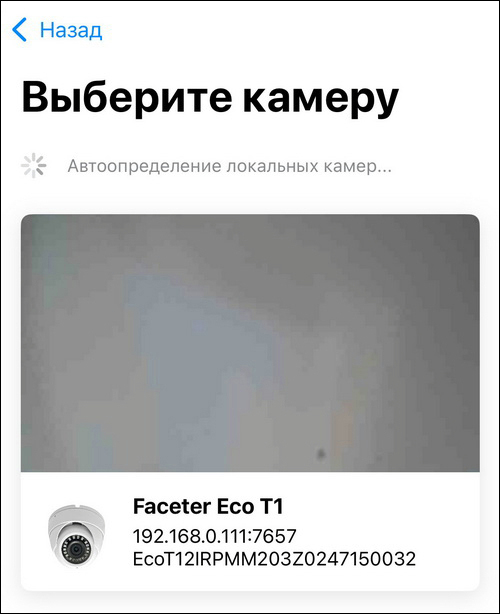
- The app will start searching for the camera on the local network.

- Select the required camera to add it to the account.
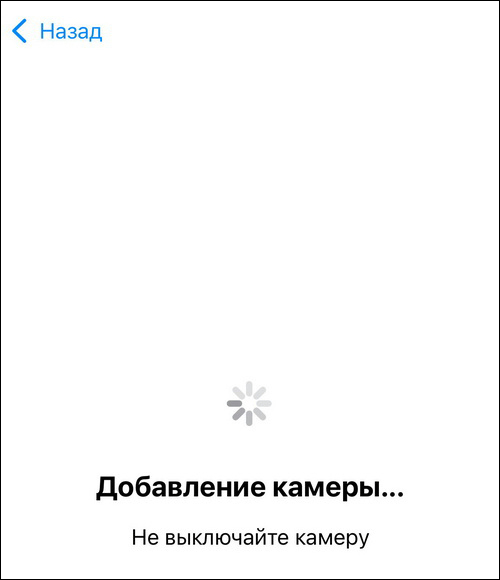
- The process of adding the camera to the account will begin. During this process, do not turn off the camera’s power or Internet connection.
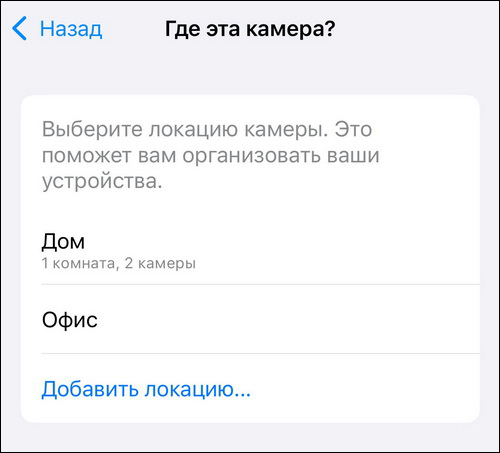
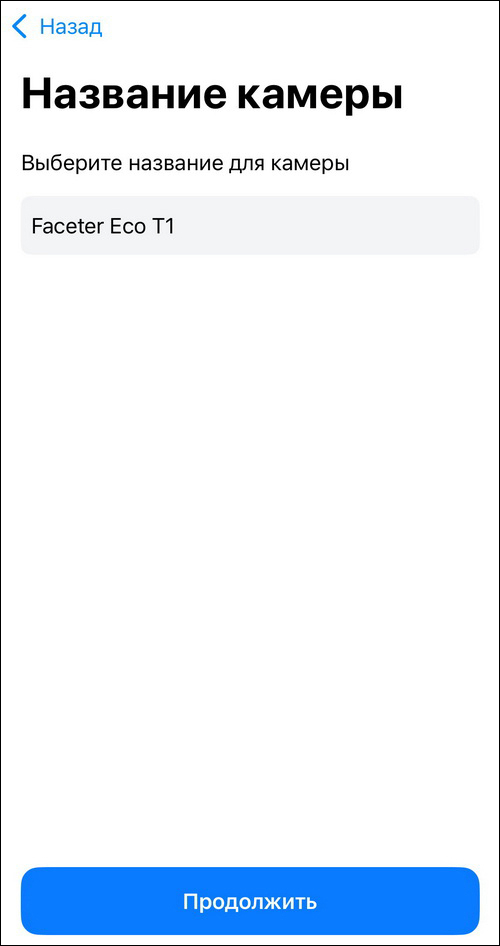
- Once the camera has been added to the account, select its location and enter a name.
- Once finished, you will see the camera viewing and management screen.
The camera has been successfully added to the 101 Vision app.