
Integrating Faceter with a Wildberries Pickup Point
To connect Faceter video surveillance to your Wildberries pickup point (PVZ), follow the steps below.
Step 1. Sign in to Faceter
Section titled “Step 1. Sign in to Faceter”Log in to your Faceter platform account.
Step 2. Open integration settings
Section titled “Step 2. Open integration settings”Go to Settings → Integrations and find Wildberries in the list of available integrations. Click Connect.
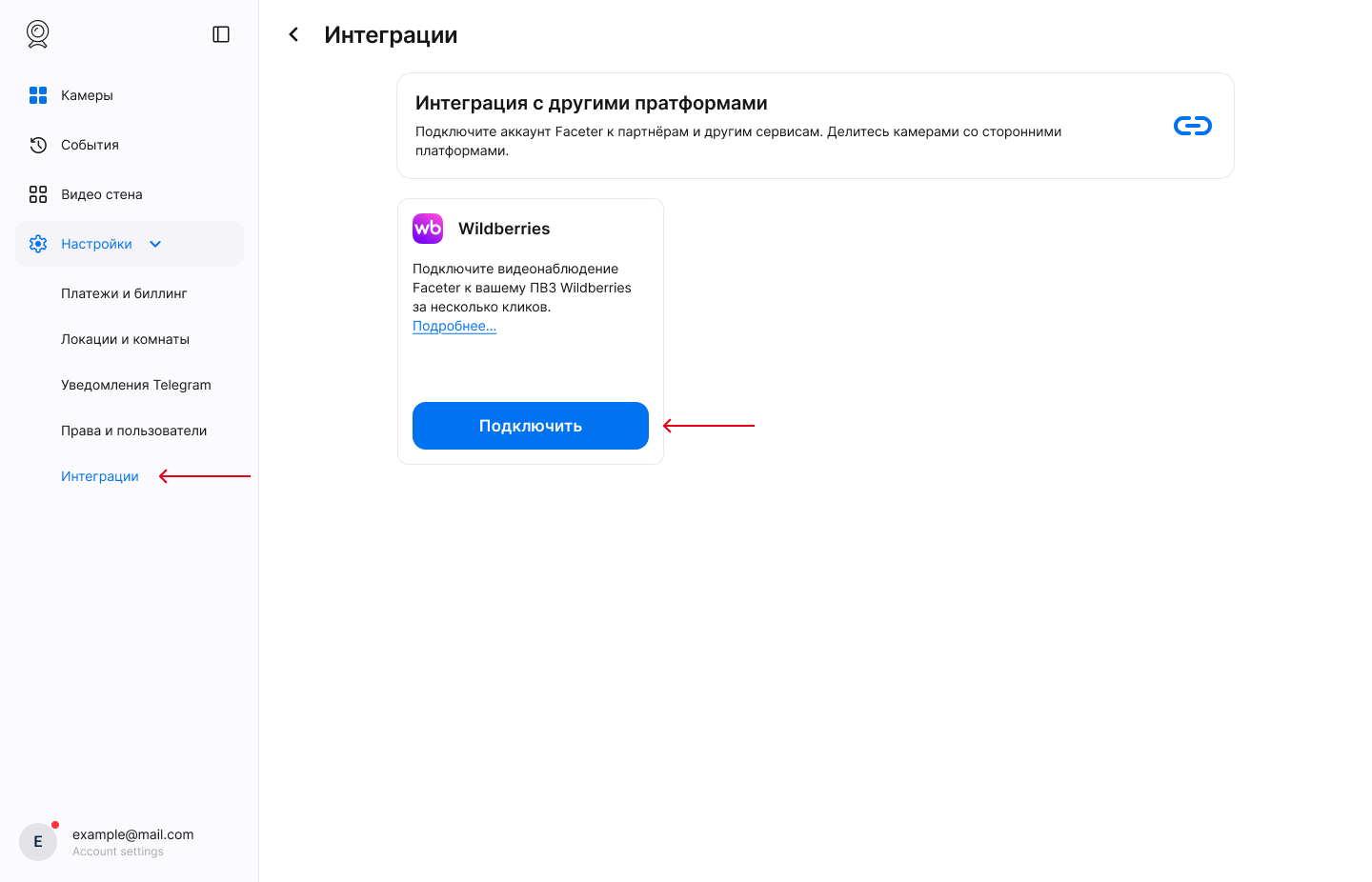
Step 3. Add a pickup point
Section titled “Step 3. Add a pickup point”On the integration page, click Add pickup point.
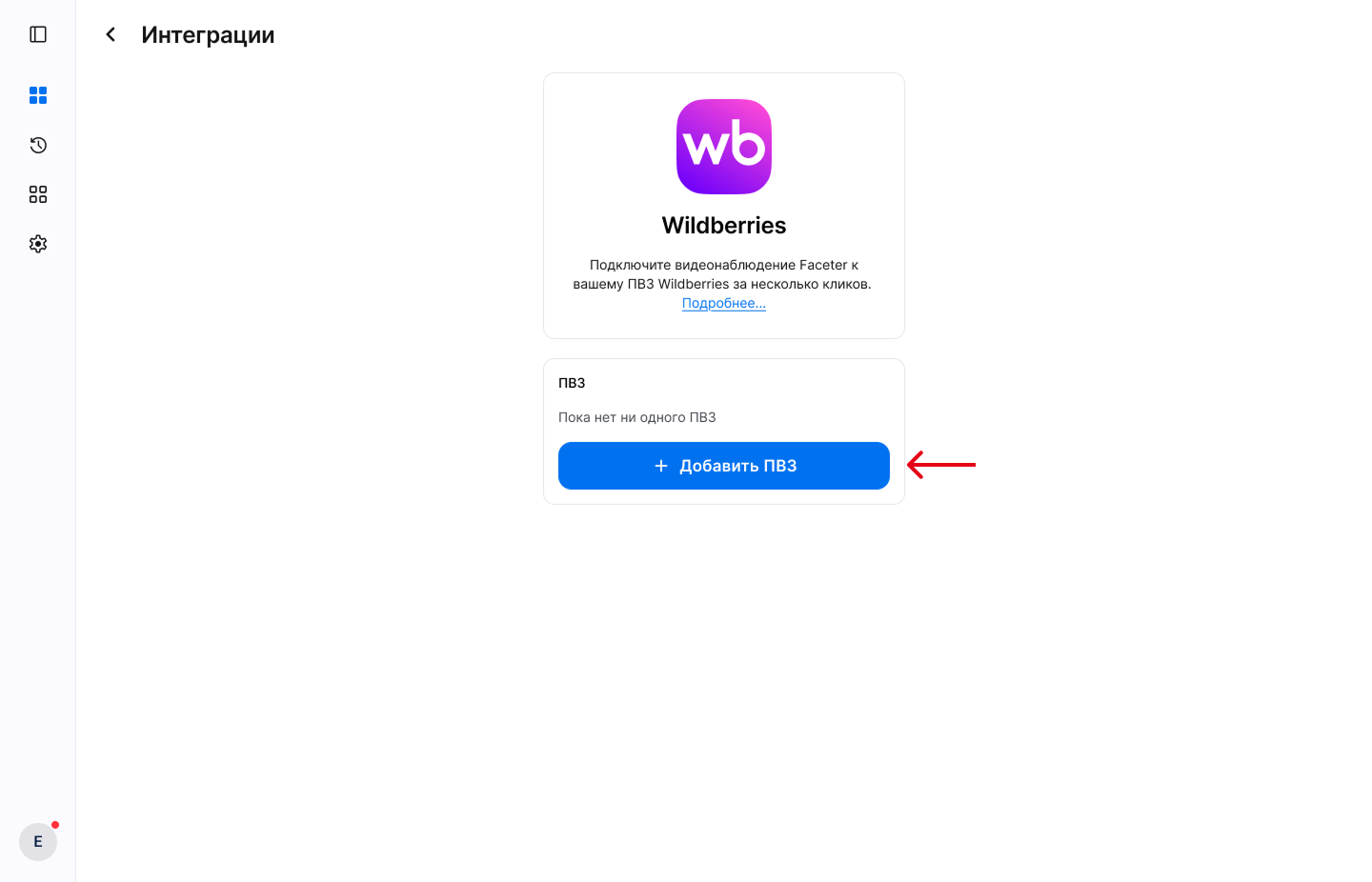
Enter the pickup point name and click Continue.
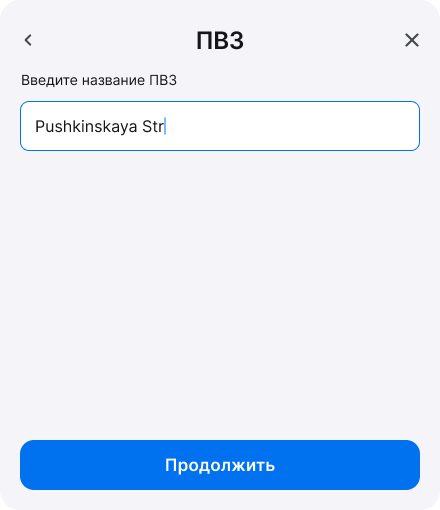
Step 4. Connect cameras
Section titled “Step 4. Connect cameras”Select the cameras you need (at least three are recommended: warehouse, customer area, manager’s workplace) and click Add cameras.
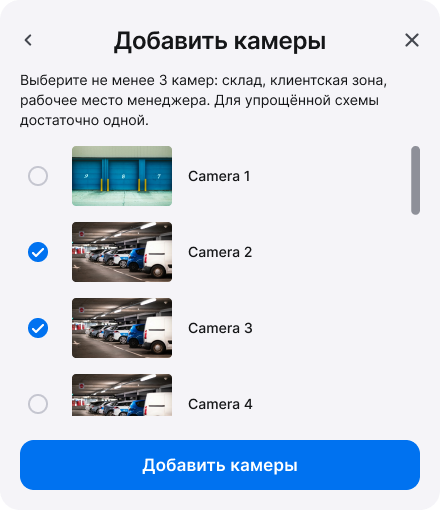
Step 5. Get your credentials
Section titled “Step 5. Get your credentials”The system will provide a service address, a login, and a token for configuring WBPoint.
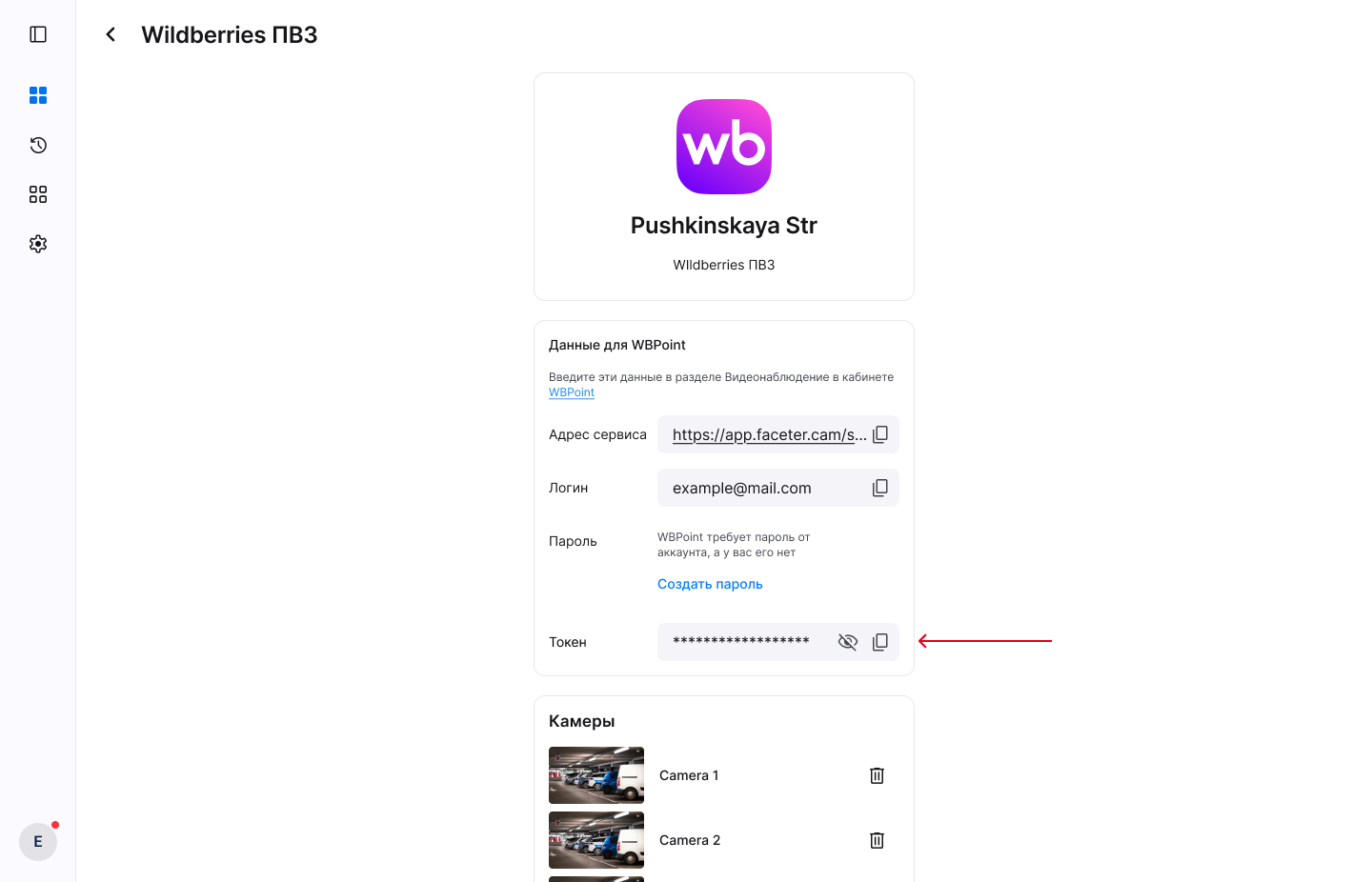
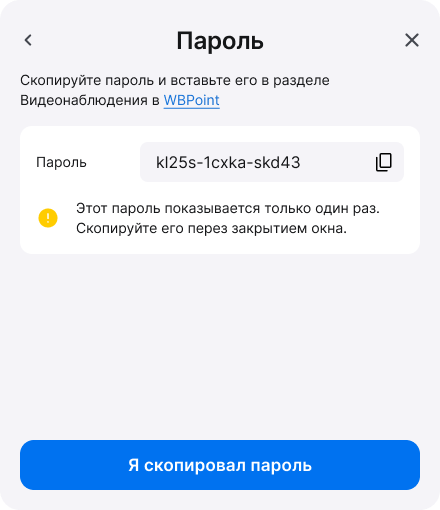
Step 6. Create a password
Section titled “Step 6. Create a password”Set a password for the connection.
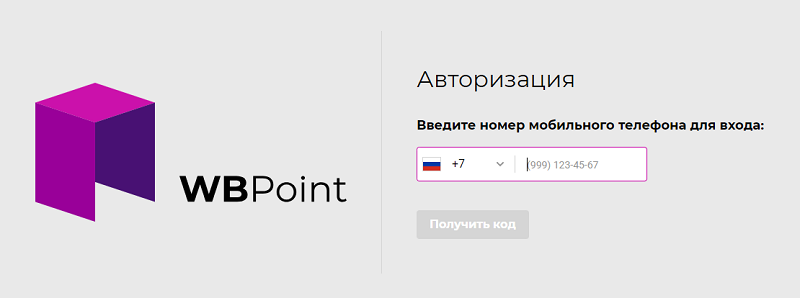
Step 7. Sign in to WBPoint
Section titled “Step 7. Sign in to WBPoint”Log in to WBPoint and open the video surveillance tab.
Step 8. Submit the data on the Wildberries side
Section titled “Step 8. Submit the data on the Wildberries side”In the final step, the data must be entered in your Wildberries account. Depending on whether your pickup point is new or already active, there are three options.
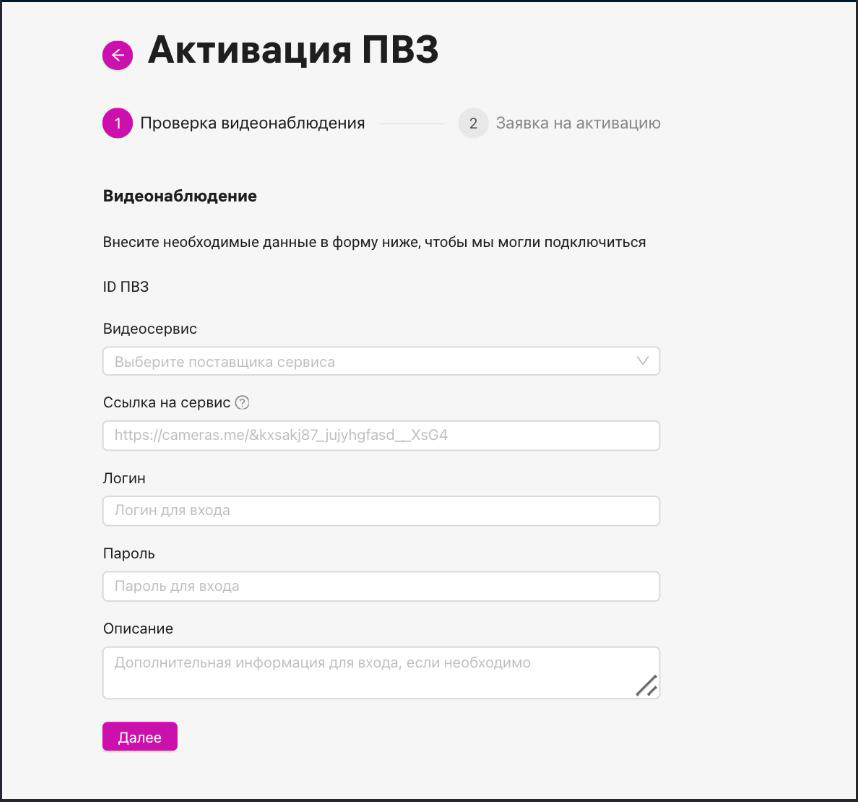
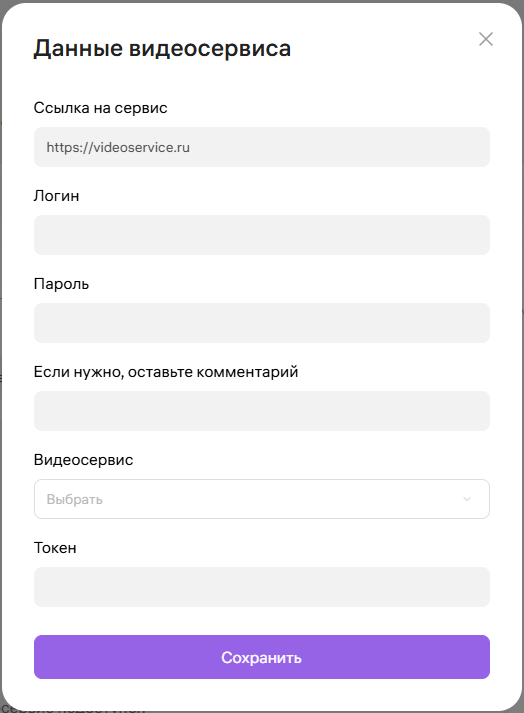
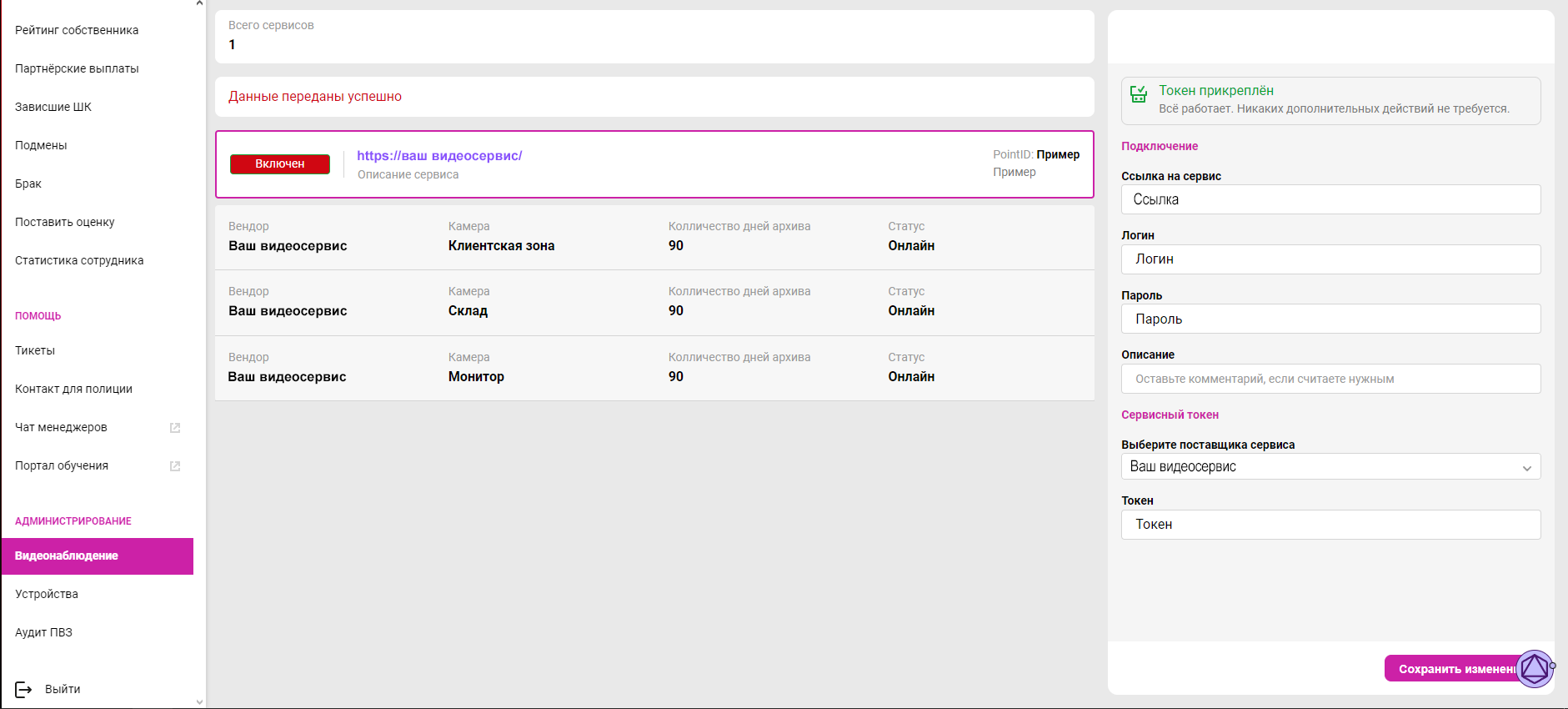
In all options you fill in the same fields:
- Video service / Service provider: select your video service (Faceter);
- Service link: the service address you received in Step 5;
- Login: your Faceter app login;
- Password: the password you set in Step 6;
- Token: the numeric code you copied in Step 5.
The rest depends on the type of your pickup point.
Option 1. New pickup point — promo page
Section titled “Option 1. New pickup point — promo page”Sign in on the promo page https://pvz.wb.ru and open the Open a pickup point section.
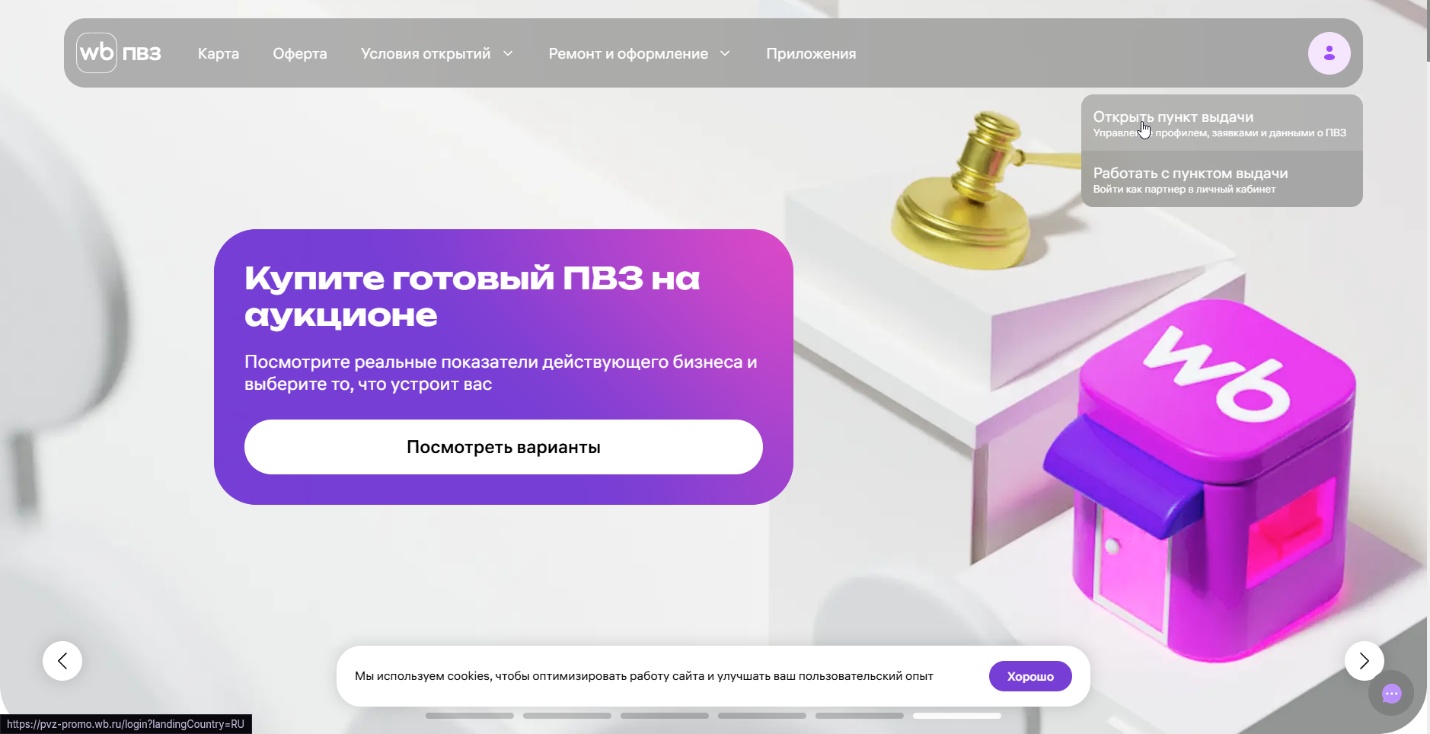
Fill in the activation form and click Save changes.
Option 2. Active pickup point — “My Pickup Point”
Section titled “Option 2. Active pickup point — “My Pickup Point””Sign in at https://my-pvz.wb.ru/login and go to Administration → Video surveillance, select the pickup point, and click Edit data.
Fill in the fields and click Save.
Option 3. Active pickup point — WB.Point
Section titled “Option 3. Active pickup point — WB.Point”Sign in at https://pvz-lk.wb.ru/login and go to Administration → Video surveillance, then click the video service link.
Fill in the fields and click Save changes.
✅ Done! Your pickup point cameras are connected to Wildberries.
Have a question or need help connecting?
Section titled “Have a question or need help connecting?”Contact Faceter support:
- Telegram bot: @FaceterTeam_Bot
- MAX: Faceter support on MAX
- WhatsApp: +7 969 124-67-69
- Email: support@faceter.cam