
SD card recording: setup, settings, and features
The PRO and Mini camera lines support storing archives not only in the cloud but also on a card: use a MicroSD with up to 256 GB for loop recording.
Storage Modes
Section titled “Storage Modes”Faceter users have three storage options:
- Cloud only;
- SD card only;
- Cloud + SD card.
Use an SD card in conditions of slow internet, limited data, or a hybrid storage setup.
Enabling SD Card Recording
Section titled “Enabling SD Card Recording”- Insert the memory card into the camera slot: detailed installation guide.
- Select the camera from the location list or find it via text search.
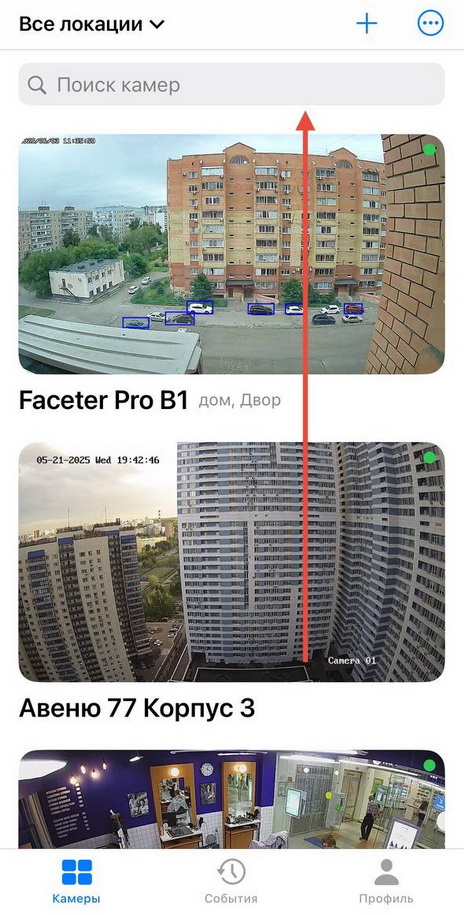
- Open the actions menu (three dots), select “Settings”.
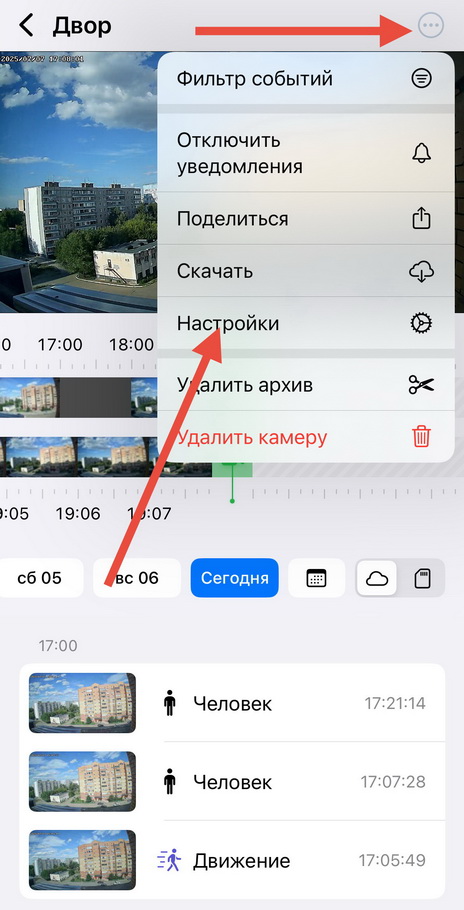
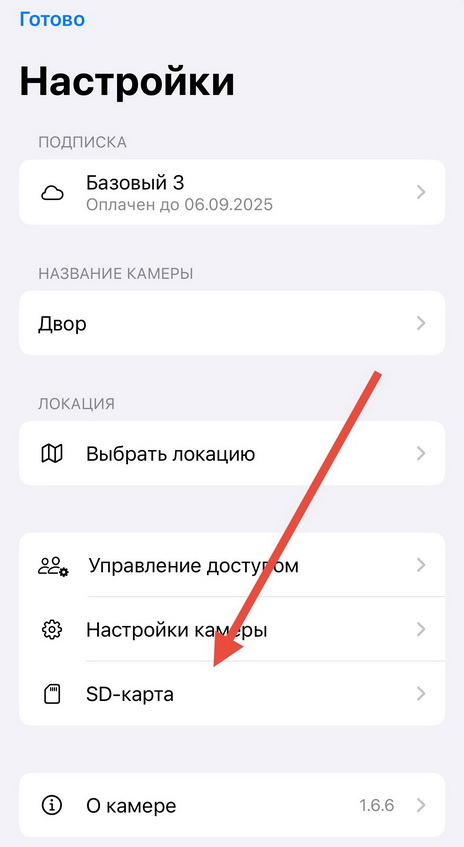
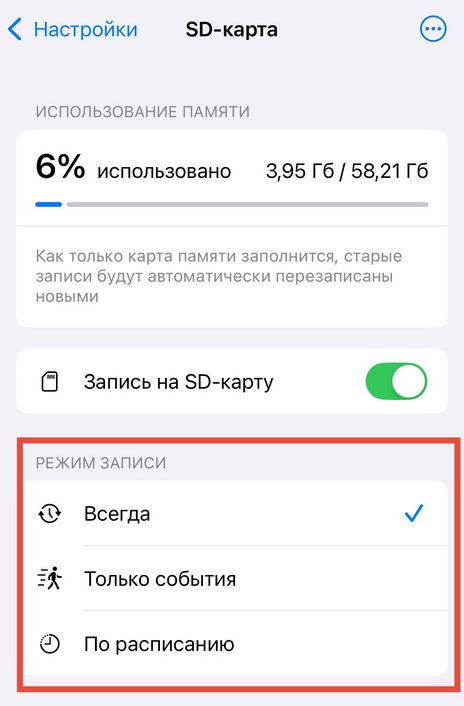
- Select “SD Card”.
- Enable SD card recording mode.
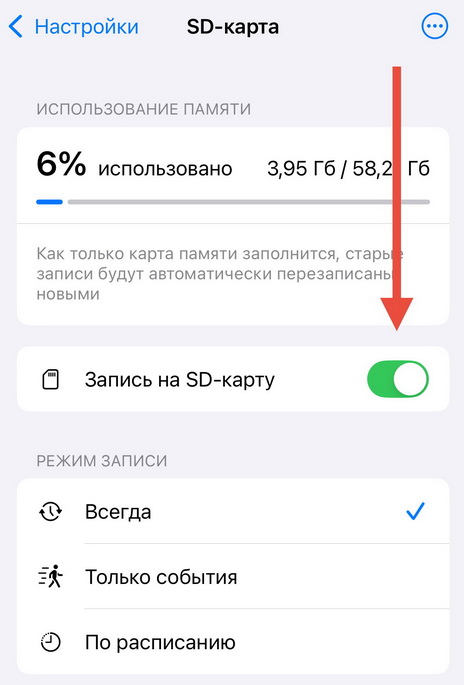
- Set the “Recording mode”: Always, Events only, or By schedule, depending on your desired archive format.
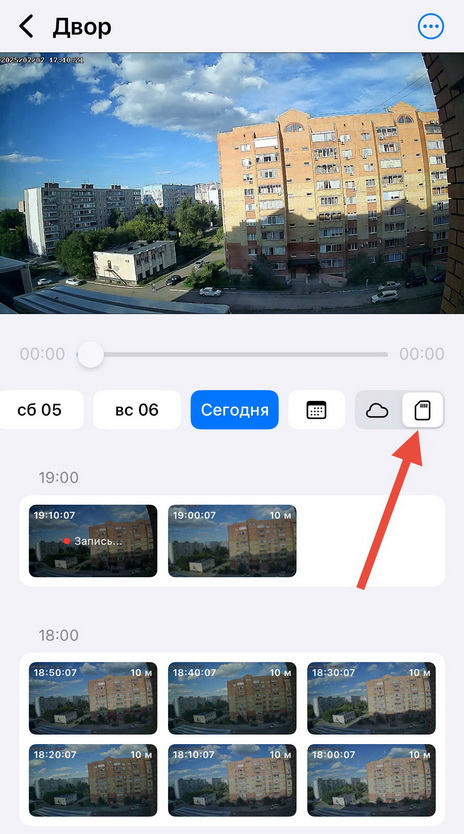
- Return to the main camera view and tap the card icon to view the MicroSD archive.
SD Archive Features
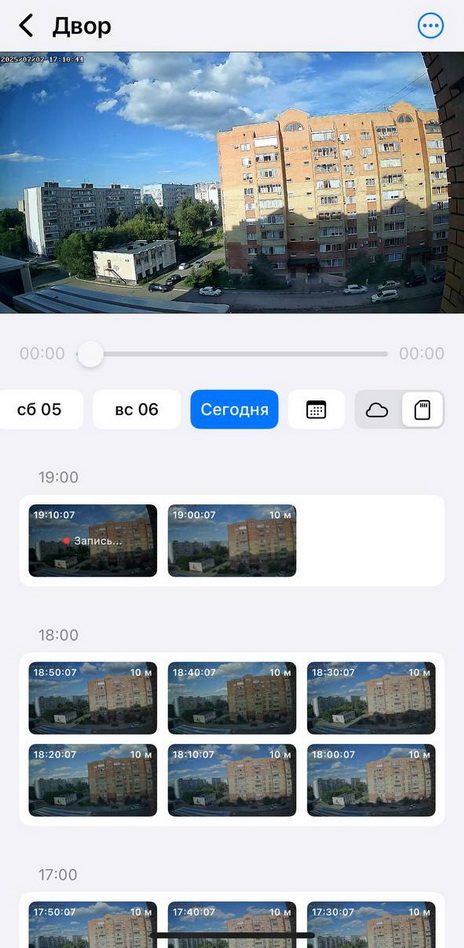
Section titled “SD Archive Features”When using the card, there is no event feed: the archive consists of 10-minute clips stored in the app as “tiles”. Detections and events are not shown in the feed — users receive Push notifications and Telegram alerts instead.
Before purchasing a card, we recommend reviewing the recommendations for choosing a suitable MicroSD card for stable surveillance operation.