
Guided Access (iOS)
If you are using Faceter on an iOS device as a camera, we recommend enabling Guided Access mode.
Guided Access keeps the iPhone locked to a single app, preventing it from leaving, and lets you control which features are available.
This way, the phonecam won’t respond to accidental touches (by children, pets, or strangers), allowing surveillance to run without interruption.
How to set up Guided Access:
-
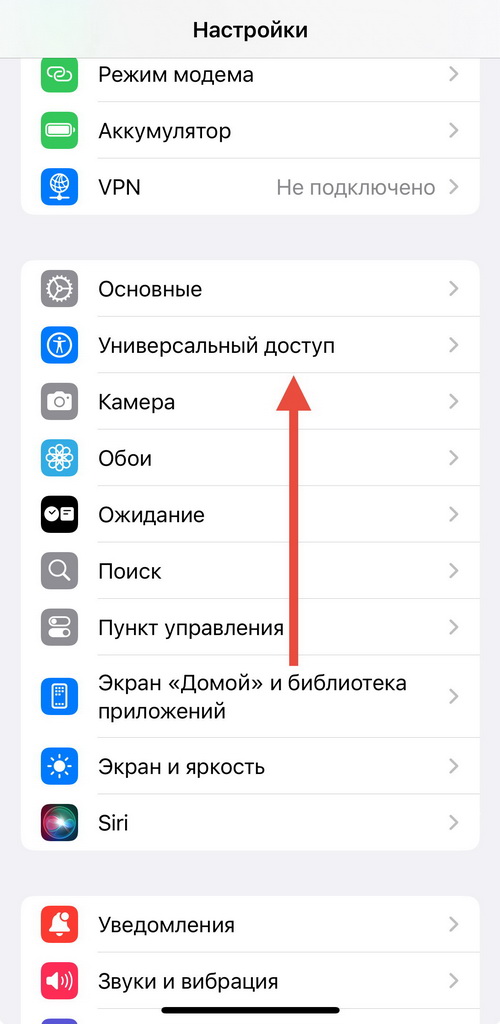
Go to “Settings”.
-
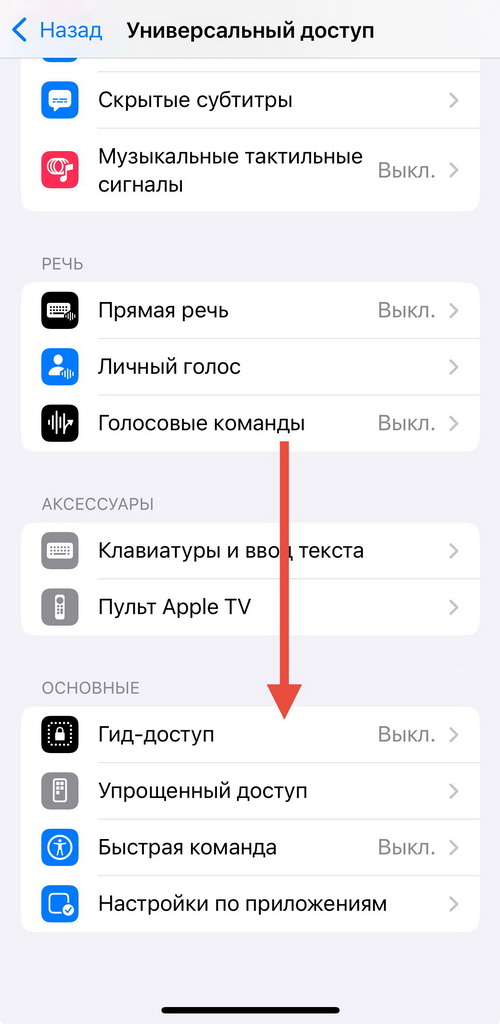
Tap “Accessibility”.
- Tap “Guided Access”.
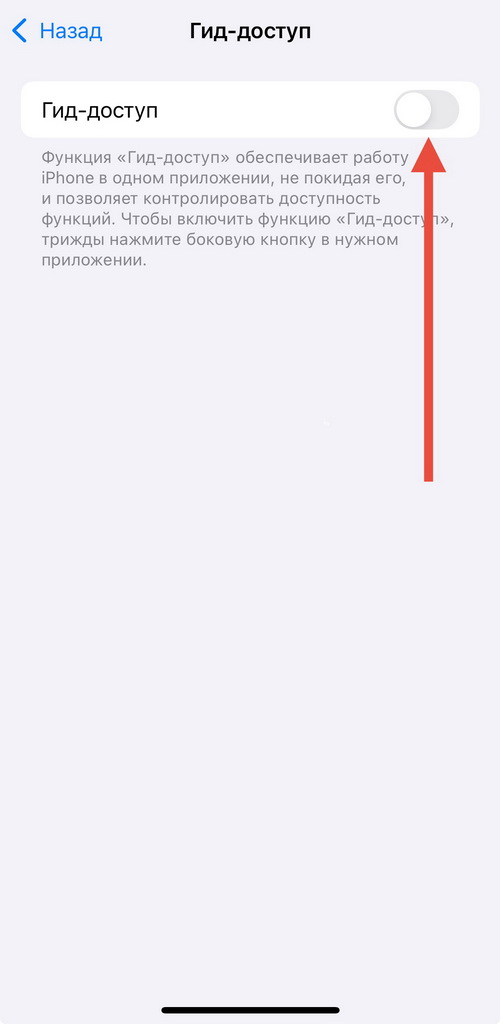
- Enable “Guided Access”.
- Enable “Accessibility Shortcut”.
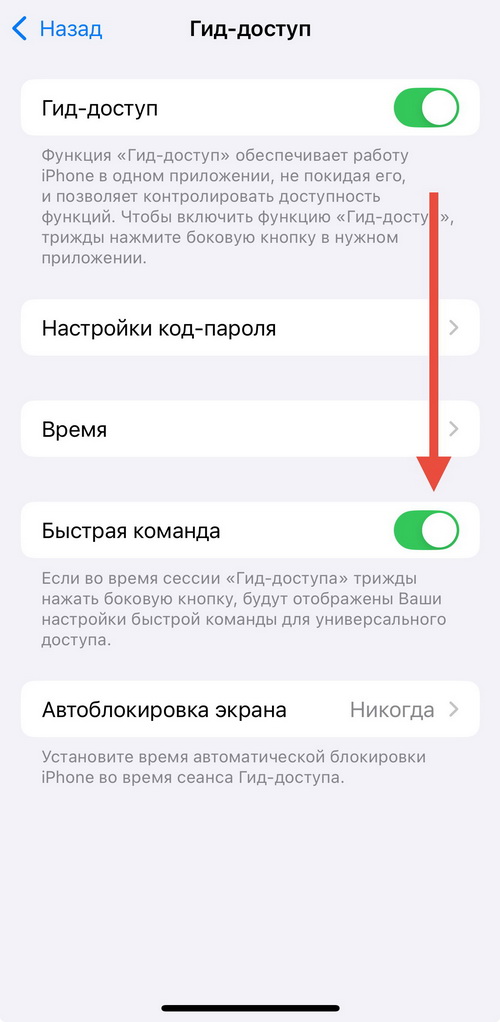
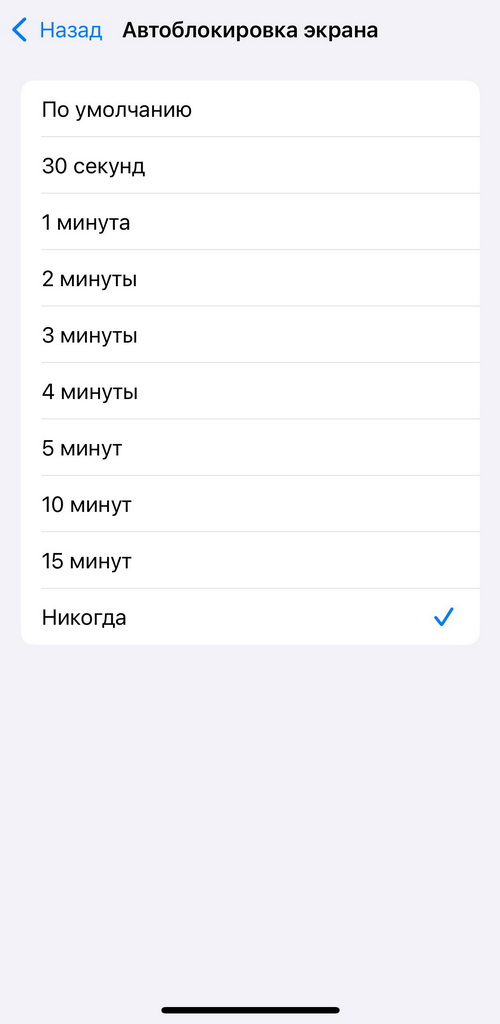
- Tap “Auto-Lock”.
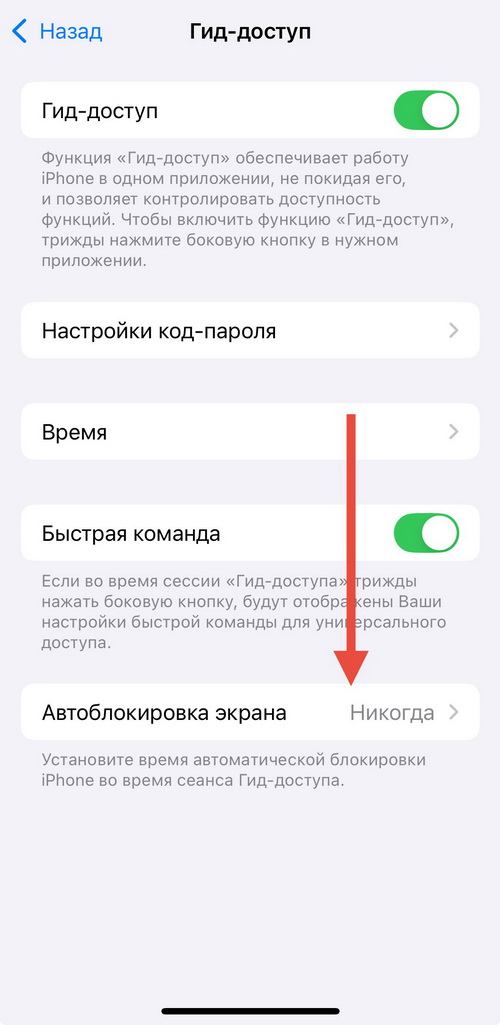
- Select “Never”.
-
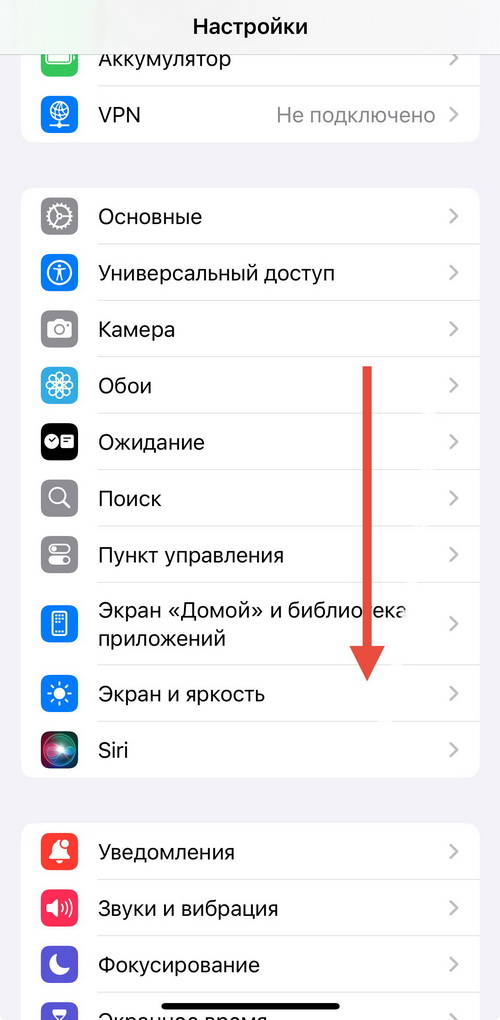
Go back to “Settings”.
-
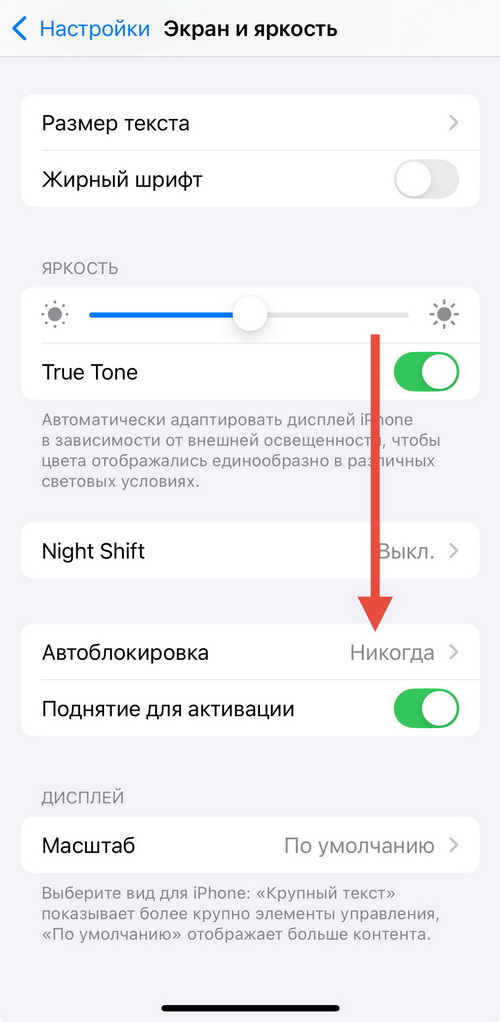
Tap “Display & Brightness”.
- Set “Auto-Lock” to “Never”.
-
Open the Faceter app.
-
Triple-click the Home button (or the side button on newer devices).
-
Configure the settings and tap “Start”.
-
Enter the passcode.
Guided Access can be disabled at any time when needed.