
Motion Detection: how to configure detection of any events on the camera?
One of the events that can be configured in the Faceter app is Motion Detection. Detect any movement with sensitivity from 0 to 10 and a threshold from 0 to 100.
How It Works
Section titled “How It Works”The image is divided by the camera into zones made up of pixels. Using the “Threshold” and “Sensitivity” settings, the system decides whether motion has been detected in the selected area.
Use Cases
Section titled “Use Cases”For detecting any events happening in front of the camera — from an unwanted object appearing to a door opening.
How to Configure
Section titled “How to Configure”- Select the required camera from the location list or find it using the text search;
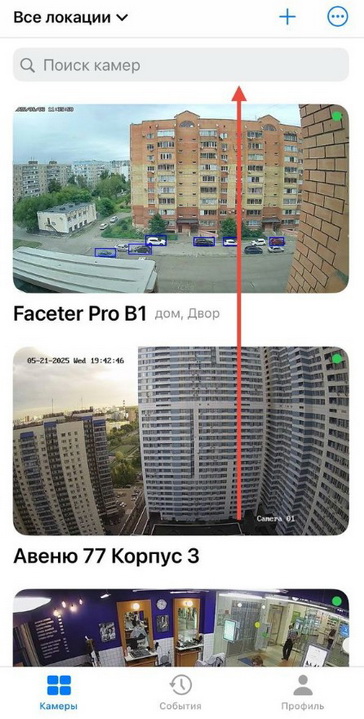
- Open the settings menu (three dots) and tap “Settings”;
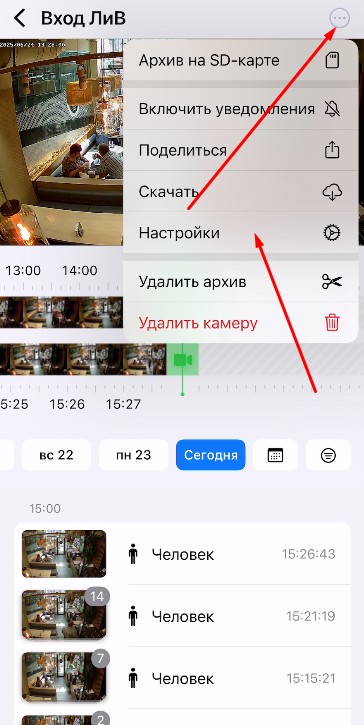
- Select “Camera Settings”;
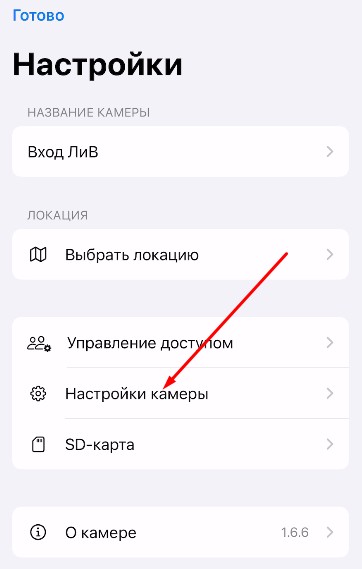
- Tap “Smart Events”;
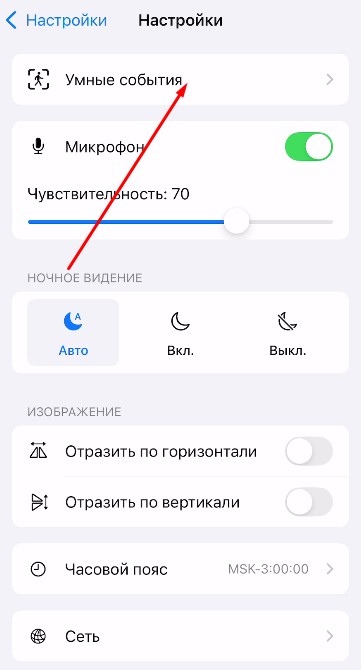
- Select “Motion Detection”;
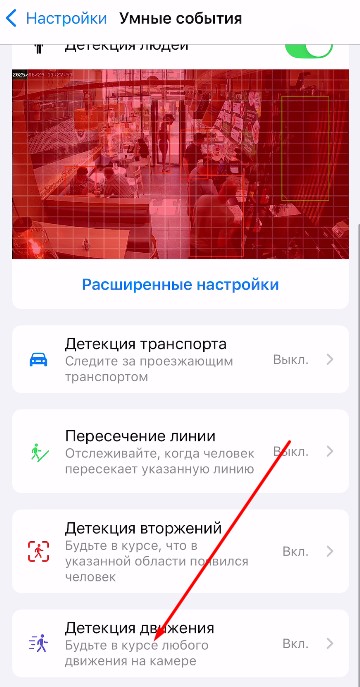
- Set the “Sensitivity” and “Threshold” values, and select up to four zones to monitor.
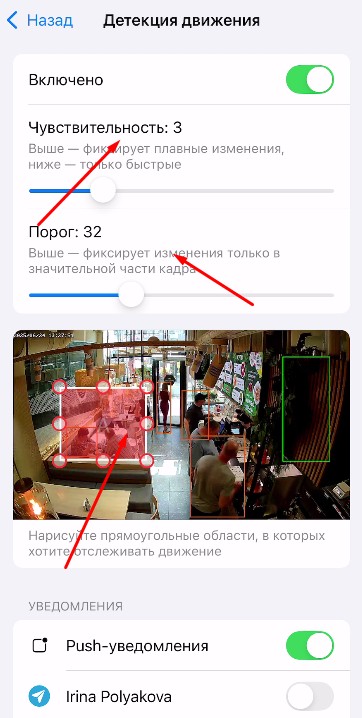
Sensitivity reflects how many changes must be detected in one of the monitoring zones for the system to recognize motion. At a low sensitivity level, the camera ignores minor fluctuations in the frame — for example, shadows from passing clouds, rain, or falling leaves.
Threshold, in turn, sets the minimum size of the area in which motion must be observed for the device to trigger. The higher the threshold, the larger the object needed to activate the system.
- Configure Push notifications and/or Telegram notifications.
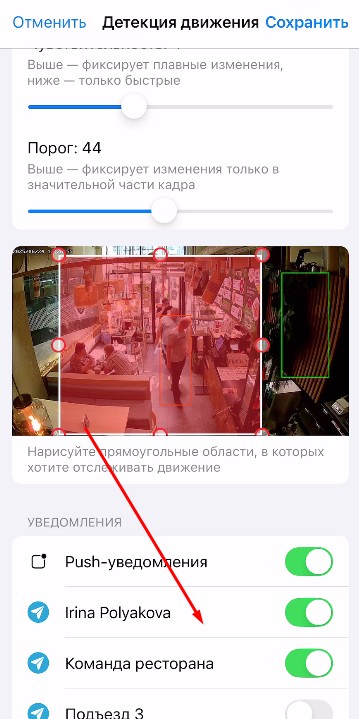
- Tap the “Save” button.
With precise settings, choose the scale and intensity of events you’re interested in: from a fly passing in front of the camera to an intrusion into the premises.
All detected motion events can be found in the event feed; use the filter for easier searching.
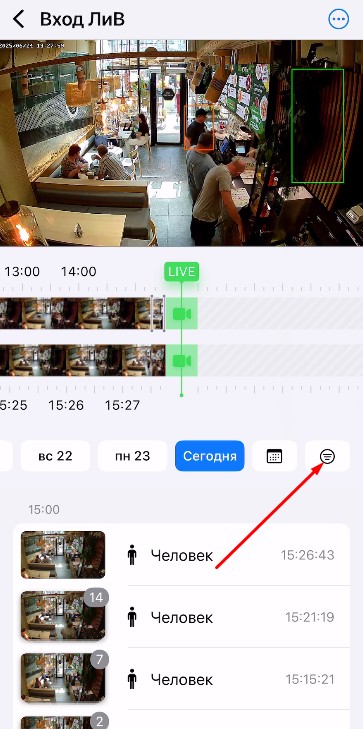
No event will go unnoticed: as soon as the sensor triggers, you will receive a notification and the event will be recorded in the app’s information feed.